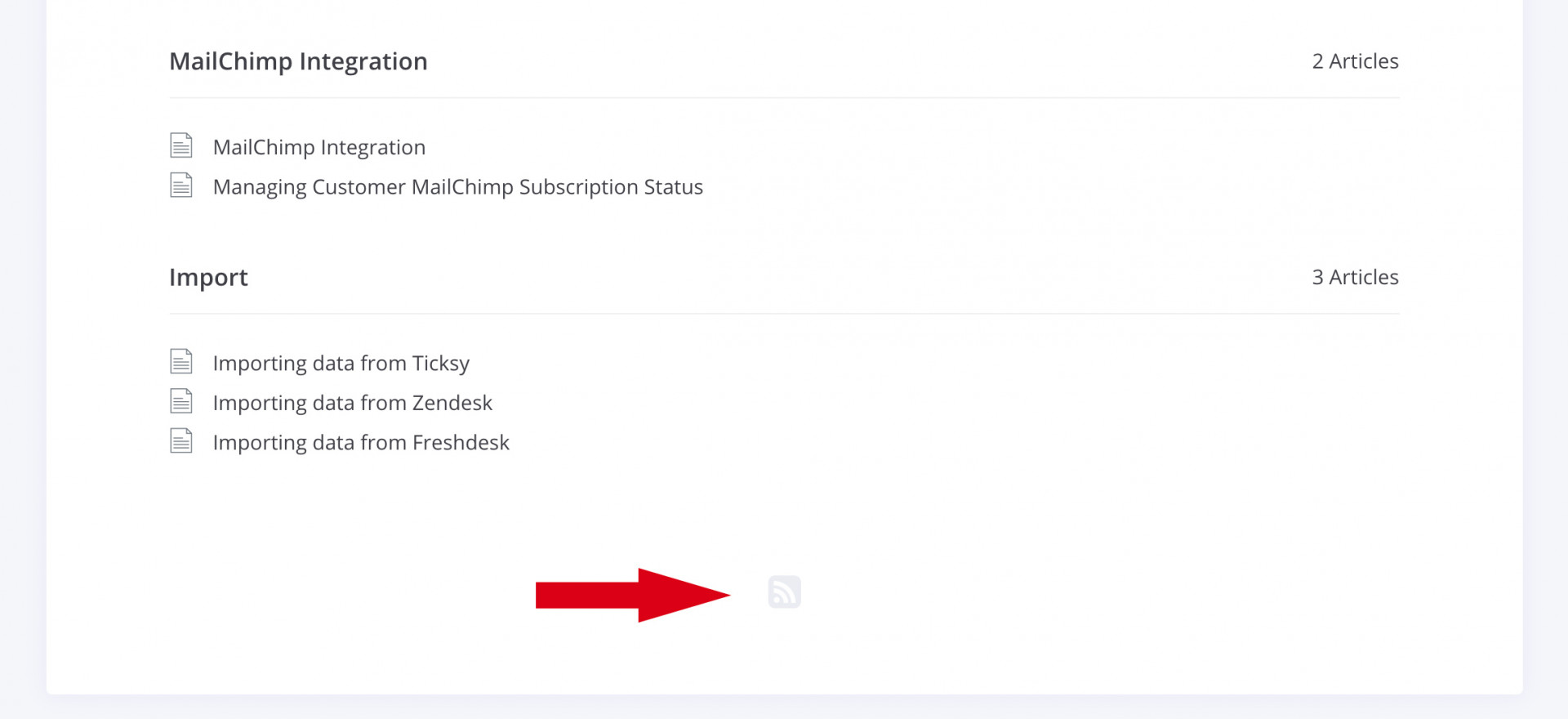
<?xml version="1.0" encoding="UTF-8"?>
<feed xmlns="http://www.w3.org/2005/Atom" xml:lang="">
                        <id>https://help.support-hub.io/feed/3</id>
                                <link href="https://help.support-hub.io/feed/3" rel="self"></link>
                                <title><![CDATA[General Article Feed]]></title>
                    
                                <subtitle></subtitle>
                                                    <updated>2020-03-10T09:20:15+00:00</updated>
                        <entry>
            <title><![CDATA[Connecting your Envato account]]></title>
            <link rel="alternate" href="https://help.support-hub.io/articles/envato-integration" />
            <id>https://help.support-hub.io/1</id>
            <author>
                <name><![CDATA[Milos Stojanovic]]></name>
            </author>
            <summary type="html">
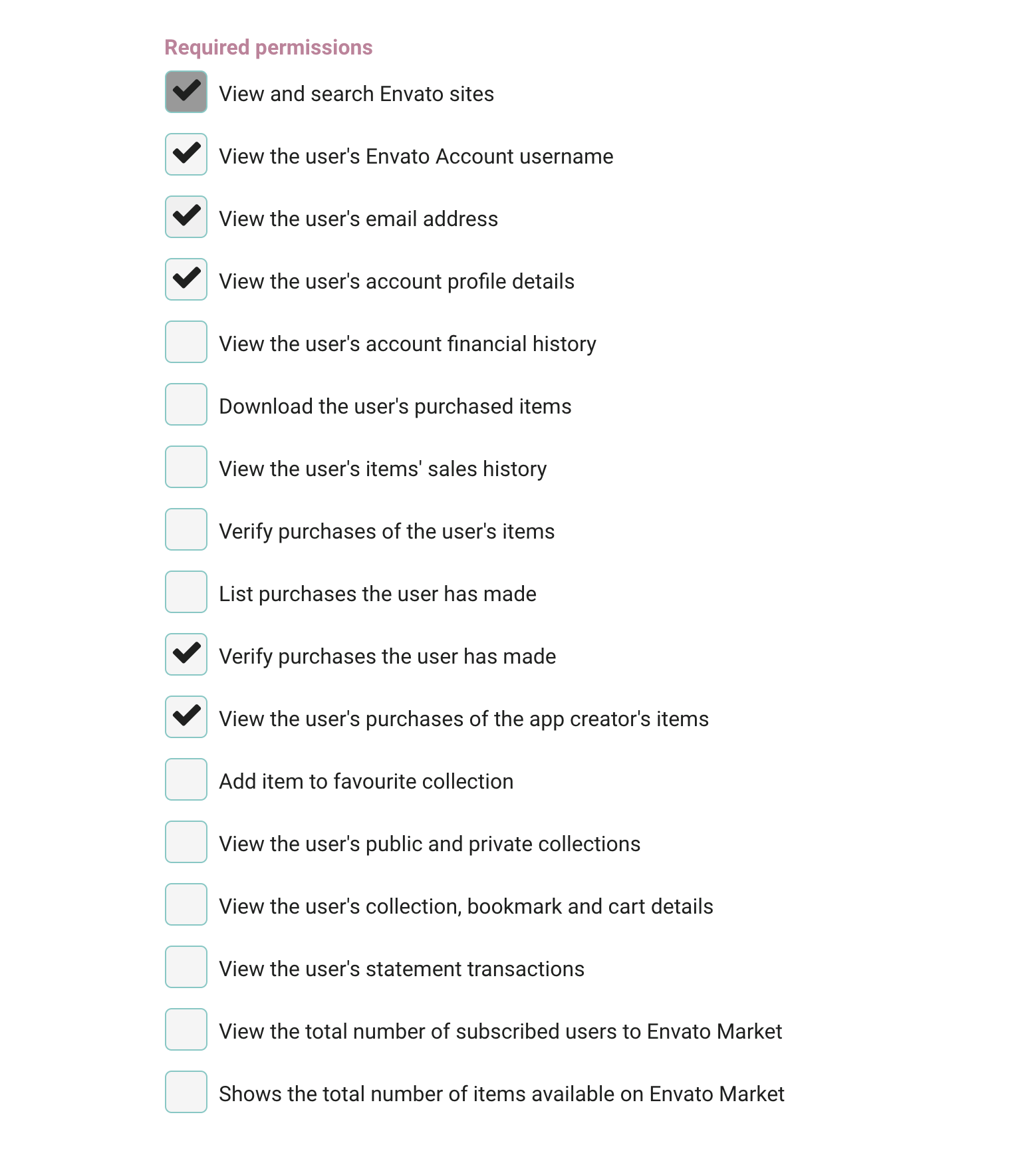
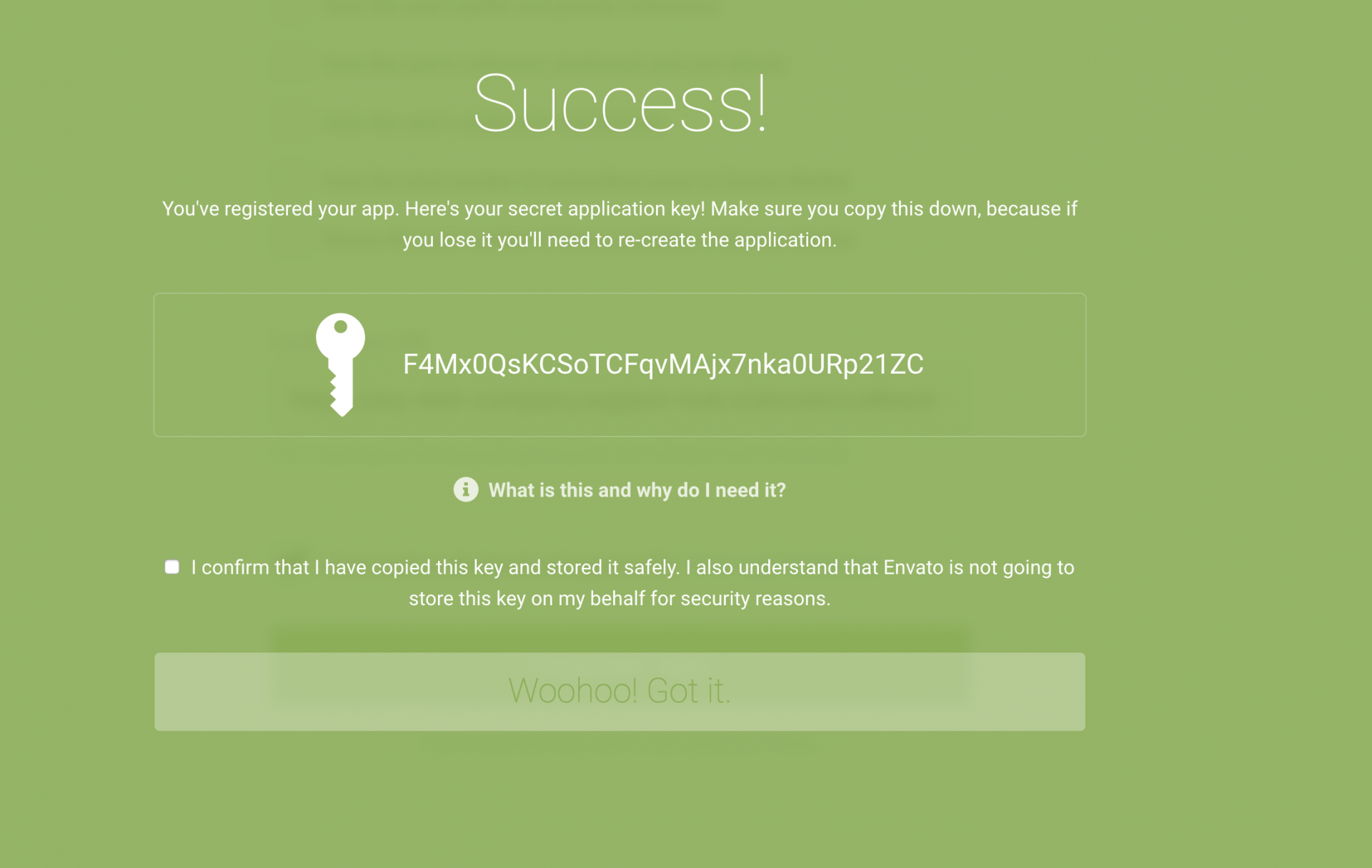
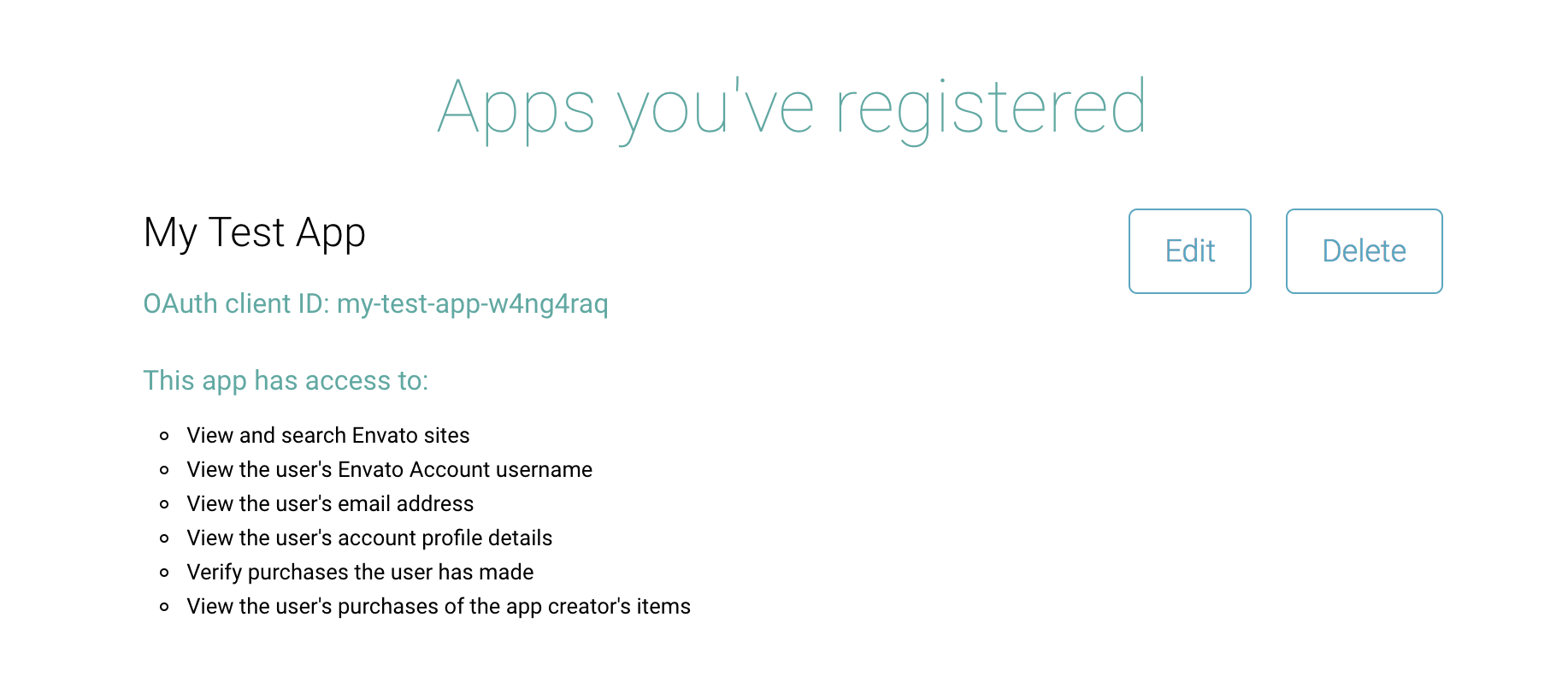
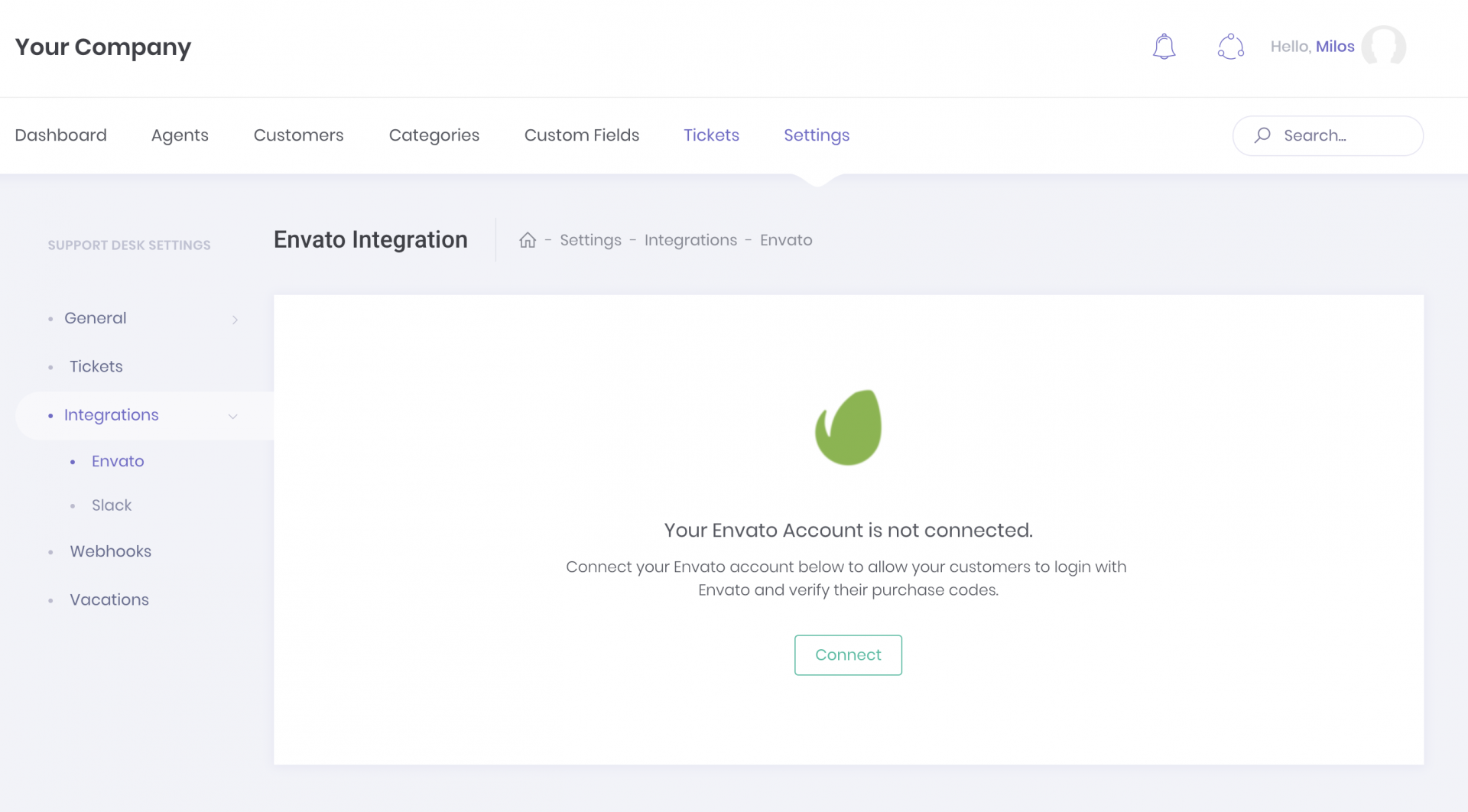
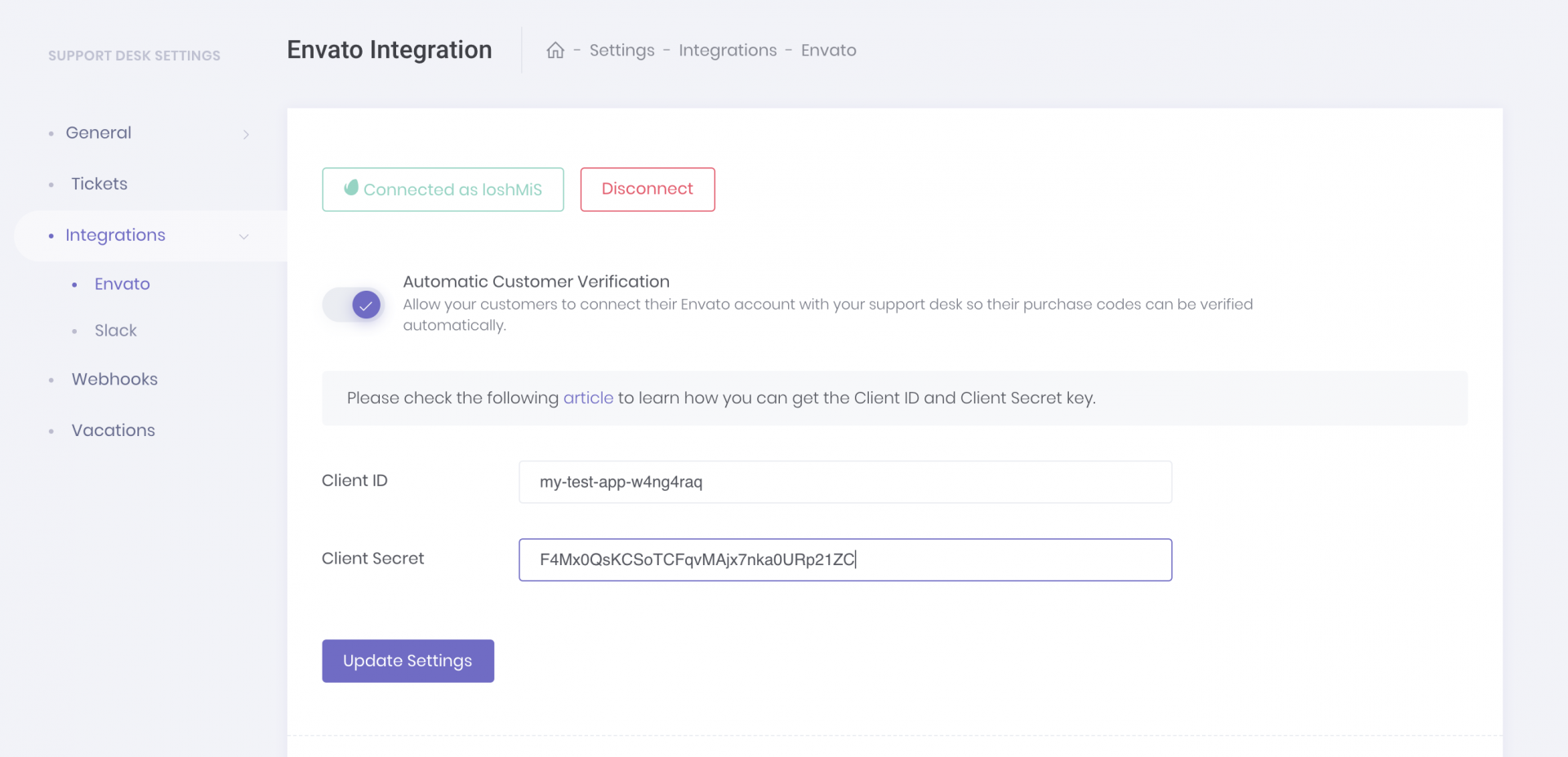
                <![CDATA[<p>If you want to allow tickets only for customers with valid Envato support, you will need to do two things: </p><ol><li>To connect your Envato account with Support Hub</li><li>To add your own Envato application to Support Hub</li></ol><h3>Connecting your Envato account</h3> In order to connect your Envato account with Support Hub, all you need to do is to go to "Settings &gt;&gt; Integrations &gt;&gt; Envato" and click the "Connect" button, like it is displayed on the image below:<img src="https://support-hub--assets.s3.eu-west-2.amazonaws.com/assets/3/images/8R5ibRoFXhInglI2Mz6ATa82wWkY4abdlmM7Uw8d.png" alt="8R5ibRoFXhInglI2Mz6ATa82wWkY4abdlmM7Uw8d.png" /><br />Once your Envato account is connected to Support Hub, you can proceed and add your own Envato app to allow your users to log in with Envato and to automatically verify their purchase codes.<br /><h3>Adding Envato Application</h3><p>If you have some experience with Envato API, this will be a breeze for you. But, even if you have never worked with it before, we will cover it here, step by step. </p><h5>Step 1: Registering new Envato application</h5>Head over to <a href="https://build.envato.com/" target="_blank" rel="noreferrer noopener">https://build.envato.com/</a>, scroll down a bit and click on a big green button titled <b>Register your app to get started.</b><br /><p>This will take you to a "Register your app" page where you need to provide some application details.</p><h6><b>Application Name</b></h6><p>Pick anything you want for an application name. This will be visible to your customers so it's recommended to pick something that will be familiar to your customers like your company name or Envato username, etc.</p><h6><b>Required Permissions</b></h6><p>These are the permissions that your app needs to work properly. Pick the following permissions from the list:</p><ul><li>View and search Envato sites</li><li>View the user's Envato Account username</li><li>View the user's email address</li><li>View the user's account profile details</li><li>Verify purchases the user has made</li><li>View the user's purchases of the app creator's items</li></ul>Here is an example screenshot:<img src="https://support-hub--assets.s3.eu-west-2.amazonaws.com/assets/3/images/zKwG1z9yd6JkDE0M0OBUhXgKegkna3AMJ5yJ8lkO.png" alt="zKwG1z9yd6JkDE0M0OBUhXgKegkna3AMJ5yJ8lkO.png" /><b><br /></b><h6><b>Confirmation URL</b></h6><p>The confirmation URL depends on your Support Hub subdomain and it should be formatted like following: <a><b>https://YOUR_SUBDOMAIN.support-hub.io/envato/callback</b></a> </p><p>For example, if your help desk is located at <b>my-test-company.support-hub.io </b>then your callback should look like <b>https://my-test-company.support-hub.io/envato/callback</b> </p><p><b>NOTE: </b>If you are using  a <a href="https://help.support-hub.io/articles/how-to-set-up-your-custom-domain" target="_blank" rel="noreferrer noopener">custom domain</a> to access your help desk, then your callback URL should look like <b>https://yourcustomdomain.com/envato/callback</b><br />In this case, your customers will be able to authenticate with their Envato account <b>only</b> when they access your help desk via the custom domain. </p><h6><b>Application Key and Secret</b></h6>Once you fill the confirmation URL input field, check the "I have read, understood and agree to the Terms and Conditions" checkbox and click the big green <b>Register App</b> button.<br />A new green popup should appear with your application <b>secret key</b> in it. <b>Make sure you copy that secret key</b> somewhere so you can access it later, check the "I confirm ..."  checkbox and click the "Woohoo! Got It." button.<img src="https://support-hub--assets.s3.eu-west-2.amazonaws.com/assets/3/images/Mudi28ICTzNKDMFR94LGmww1juLIaHYb04D1Fx6B.png" alt="Mudi28ICTzNKDMFR94LGmww1juLIaHYb04D1Fx6B.png" /><br />After clicking the "Woohoo! Got It." button, you will be redirected to the list of your Envato applications and your newly created application should be listed under "Apps you've registered" heading.<img src="https://support-hub--assets.s3.eu-west-2.amazonaws.com/assets/3/images/pKMUhyL4XHmwQK46imydaLBPinLdrAXXeDDB82Pu.png" alt="pKMUhyL4XHmwQK46imydaLBPinLdrAXXeDDB82Pu.png" /><br /><h4>Step 2: Updating Support Hub Settings</h4>Once you have successfully registered your Envato app, all you need to do is to copy your application key (displayed as <i>OAuth client ID </i>on the screenshot above) and your secret key (the one you copied from a green pop-up) and paste them into appropriate Support Hub input boxes, like it is displayed on the image below:<br /><img src="https://support-hub--assets.s3.eu-west-2.amazonaws.com/assets/3/images/Yc2DAXnadZlVXKZGGHVnNhls9jq8qvSQZmStxKhA.png" alt="Yc2DAXnadZlVXKZGGHVnNhls9jq8qvSQZmStxKhA.png" /><br />Now hit the "Update Settings" button and that's it, your customers will now be able to connect their Envato accounts to your support desk and verify their purchases automatically.]]>
            </summary>
                                    <updated>2019-01-17T10:15:32+00:00</updated>
        </entry>
            <entry>
            <title><![CDATA[API Docs]]></title>
            <link rel="alternate" href="https://help.support-hub.io/articles/api-docs-1707" />
            <id>https://help.support-hub.io/1707</id>
            <author>
                <name><![CDATA[Milos Stojanovic]]></name>
            </author>
            <summary type="html">
                <![CDATA[<p>The complete API reference is available on <a href="https://developer.support-hub.io">https://developer.support-hub.io</a> </p>]]>
            </summary>
                                    <updated>2020-03-10T09:19:36+00:00</updated>
        </entry>
            <entry>
            <title><![CDATA[Converting E-Mails to Support Tickets]]></title>
            <link rel="alternate" href="https://help.support-hub.io/articles/converting-e-mails-to-support-tickets" />
            <id>https://help.support-hub.io/83</id>
            <author>
                <name><![CDATA[Milos Stojanovic]]></name>
            </author>
            <summary type="html">
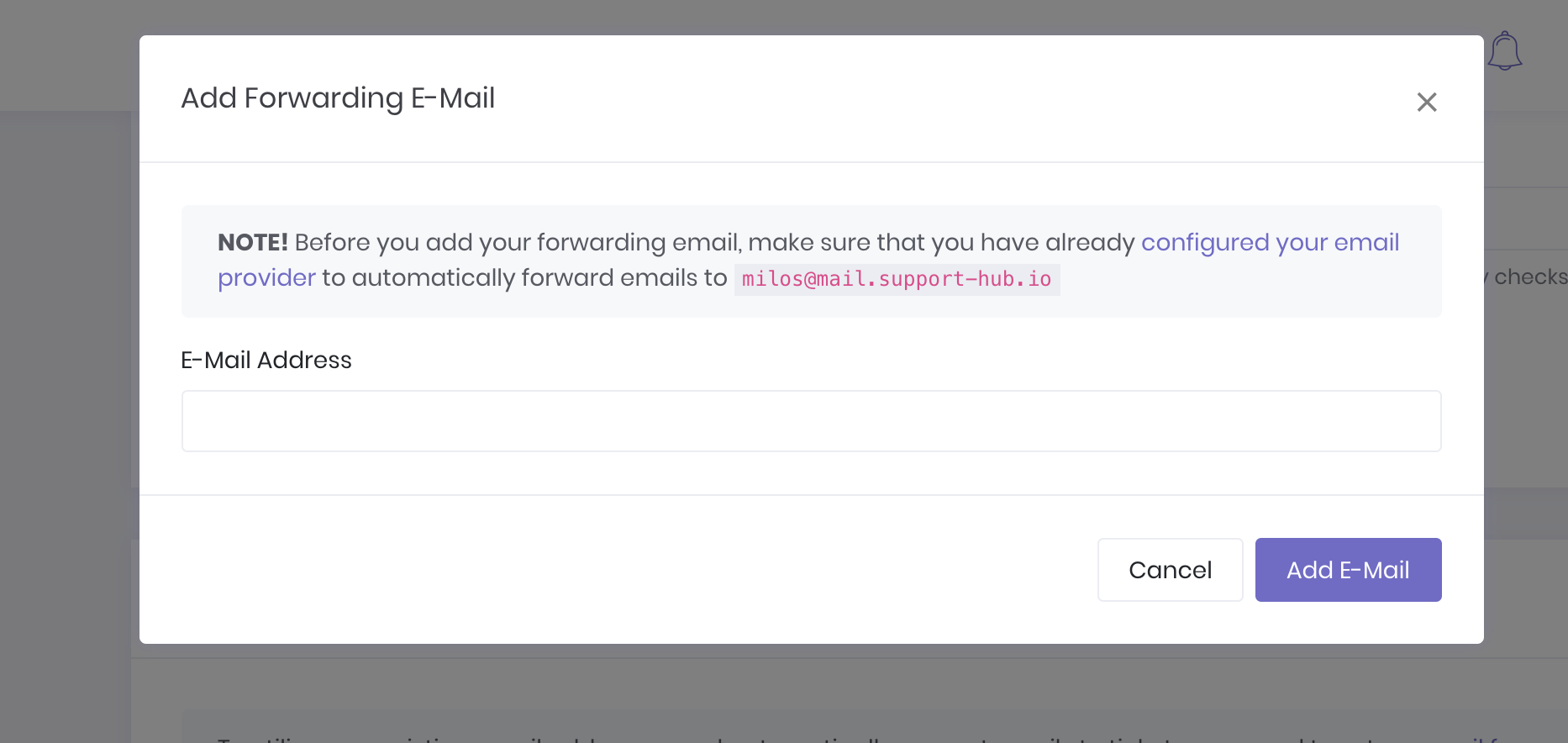
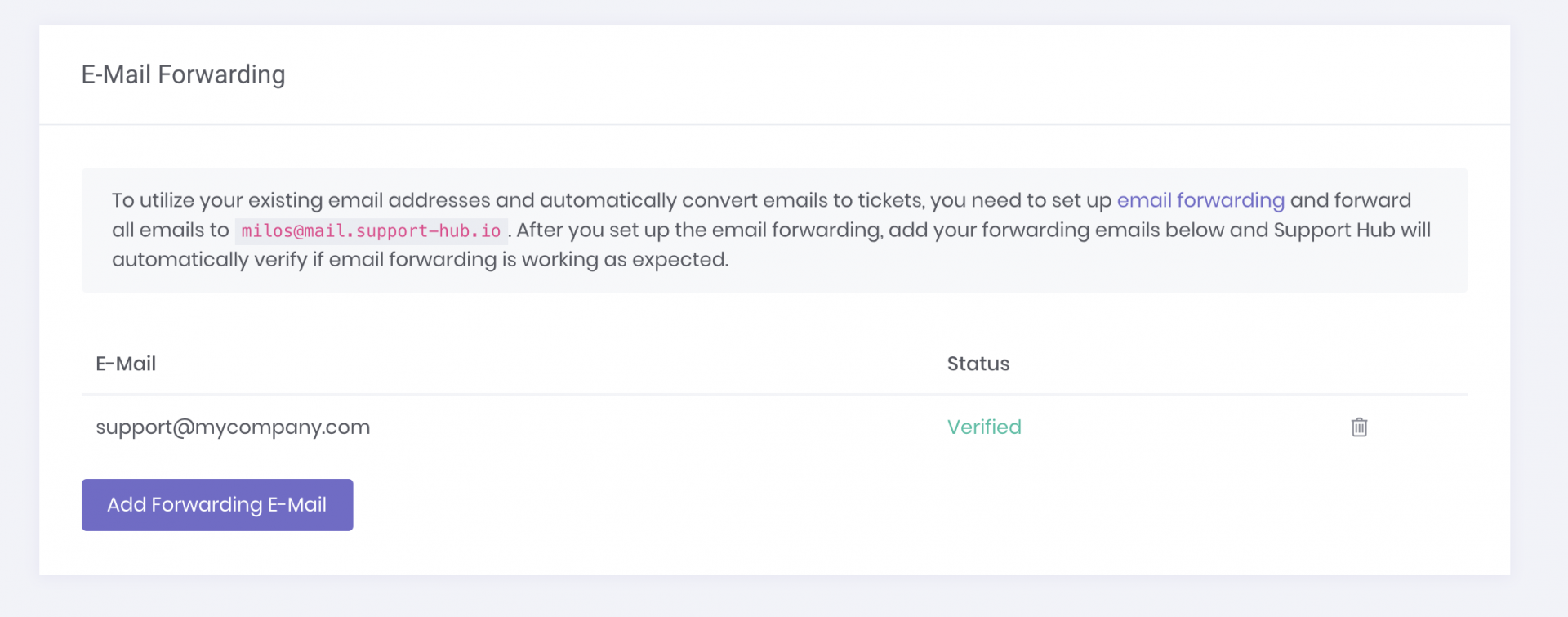
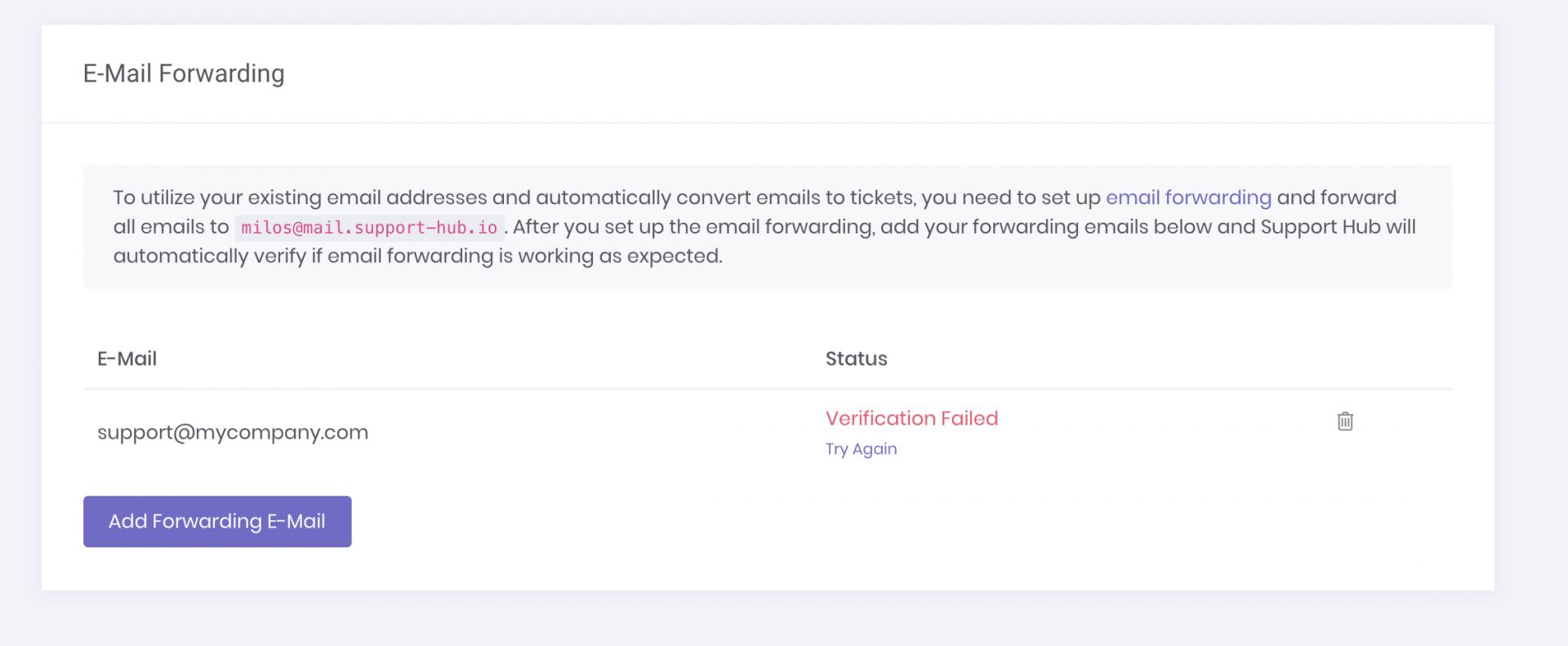
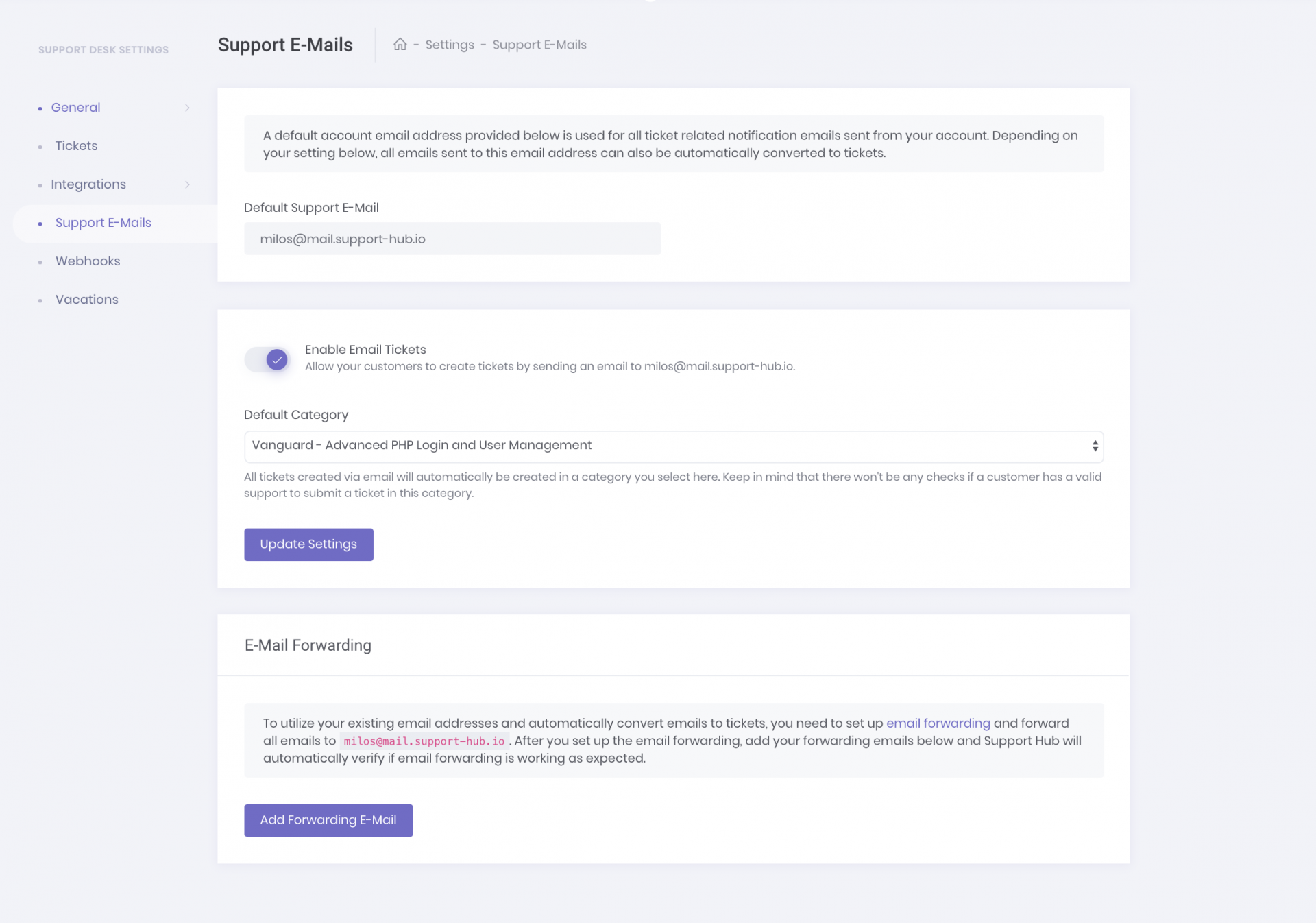
                <![CDATA[<p>As soon as you create your Support Hub account, an email address is automatically created for you and it has the following format: <b><i>your_account_subdomain</i>@mail.support-hub.io</b> </p><p>This email address will be used for sending email notifications to your customers and it will allow them to add replies to a ticket by replying directly to the email notification they have received.</p><p>Additionally, you can enable automatic ticket creation if someone sends an email to your default support email address from above.</p><h4>Enabling Ticket E-Mails</h4><p>From your account settings section, you can enable "Email Tickets" feature which will automatically turn any emails you receive on <i>your_account_subdomain@mail.support-hub.io</i> to <b>private</b> tickets.</p><p>Here you will also need to define a default support category for those tickets. </p><p><img src="https://support-hub--assets.s3.eu-west-2.amazonaws.com/assets/3/images/B4b7hXLofUyFjXcIduSEczrDVoKcIarQuAD5rNNQ.png" alt="B4b7hXLofUyFjXcIduSEczrDVoKcIarQuAD5rNNQ.png" /></p><p><b>NOTE: </b>Purchase code verification will not be performed for tickets created via email! Make sure that you select the appropriate default category here or, if you don't want to allow ticket creation without a purchase code verification, consider disabling the "Email Tickets" feature.</p><h4>Adding an external support address</h4><p>If you already have an email address that you want to use (for example <i>support@yourcompany.com</i>) you can forward the emails you receive on <i>support@yourcompany.com</i> to <i>your_account_subdomain@mail.support-hub.io</i> and any forwarded emails will be automatically converted to support tickets.</p><p>Here is the documentation on how to forward emails for some of the most popular email providers:</p><ul><li><a href="https://support.office.com/en-us/article/use-rules-to-create-an-out-of-office-message-9f124e4a-749e-4288-a266-2d009686b403" target="_blank" rel="noreferrer noopener">Microsoft Exchange and Outlook</a><br /></li><li><a href="https://support.google.com/a/answer/175745" target="_blank" rel="noreferrer noopener">Google Gmail and G Suite</a></li><li><a href="https://help.yahoo.com/kb/SLN3525.html" target="_blank" rel="noreferrer noopener">Yahoo Mail</a></li></ul><p>Most email providers will send a verification email to a forwarded email address (your_account_subdomain@mail.support-hub.io in your case) and that <b>email will automatically appear as a ticket</b> in your Support Hub account. This ticket usually contains instructions on how to verify the forwarding email and enable forwarding.</p><p>As soon as you complete the forwarding configuration, you are ready to start receiving the support tickets via email. </p><h5>Verifying your forwarding configuration (optional)</h5><p>This step is completely optional and, if you have configured the forwarding settings properly, tickets will be automatically created when someone sends you an email to a defined external support email address.<br />However, if you want to make sure that your email forwarding is working as expected, it is recommended to follow the instructions below and add your forwarding emails to Support Hub.</p><p>So, as soon as you finish the forwarding process for your email provider, add the forwarding email to Support Hub by clicking the <b>Add Forwarding E-Mail </b>button and by filling in the email inside the input field which will appear in the modal displayed below.</p><p><img src="https://support-hub--assets.s3.eu-west-2.amazonaws.com/assets/3/images/j6hC559Bnyip4LipMccmI6quRfBksV7iTyjg5EOe.png" alt="j6hC559Bnyip4LipMccmI6quRfBksV7iTyjg5EOe.png" /></p><p>Once you add the forwarding email, Support Hub will automatically attempt to verify your forwarding configuration by sending a sample email to the email address you have provided. If everything is configured properly, you will receive a success flash message and email will appear as verified.</p><p><img src="https://support-hub--assets.s3.eu-west-2.amazonaws.com/assets/3/images/QVjNFClFqPabZEFtOVXysWrxvNpJwRho2GTIq2TZ.png" alt="QVjNFClFqPabZEFtOVXysWrxvNpJwRho2GTIq2TZ.png" /></p><p>If something is not configured properly, the status will turn to "Verification Failed" and you will be able to verify it again by clicking the "Try Again" link below the status. </p><p><img src="https://support-hub--assets.s3.eu-west-2.amazonaws.com/assets/3/images/T9EVE6AytRlprNhwkZv4fIN0ovyJ2jpU03QNGsxH.png" alt="T9EVE6AytRlprNhwkZv4fIN0ovyJ2jpU03QNGsxH.png" /><br /></p><p>In this case, there is most likely some issue with your email forwarding configuration and you should check the forwarding settings again before you click the "Try Again" button, to make sure that everything is configured properly.</p>]]>
            </summary>
                                    <updated>2018-08-01T07:41:55+00:00</updated>
        </entry>
            <entry>
            <title><![CDATA[Generating a New API Token]]></title>
            <link rel="alternate" href="https://help.support-hub.io/articles/generating-a-new-api-token-1704" />
            <id>https://help.support-hub.io/1704</id>
            <author>
                <name><![CDATA[Milos Stojanovic]]></name>
            </author>
            <summary type="html">
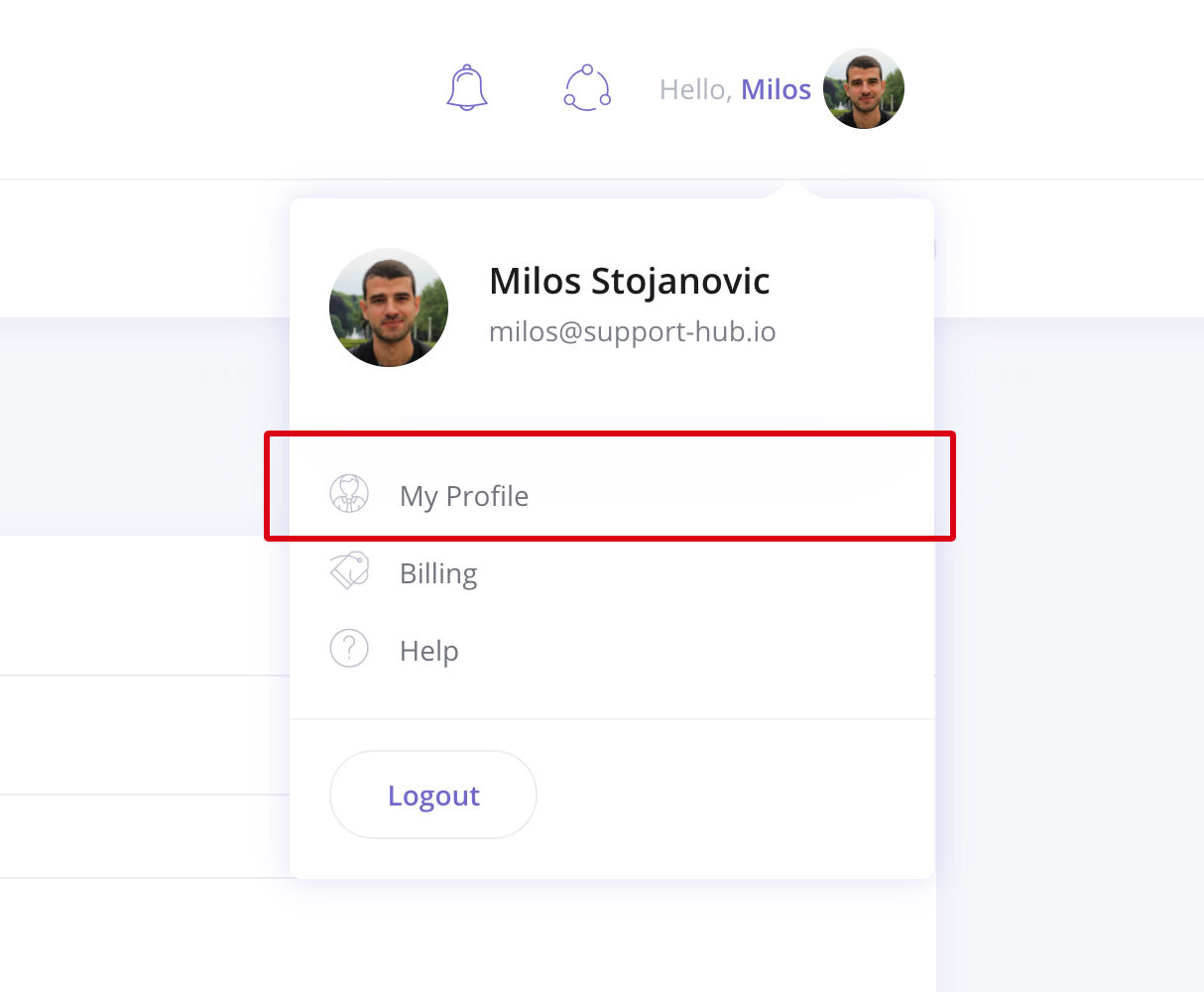
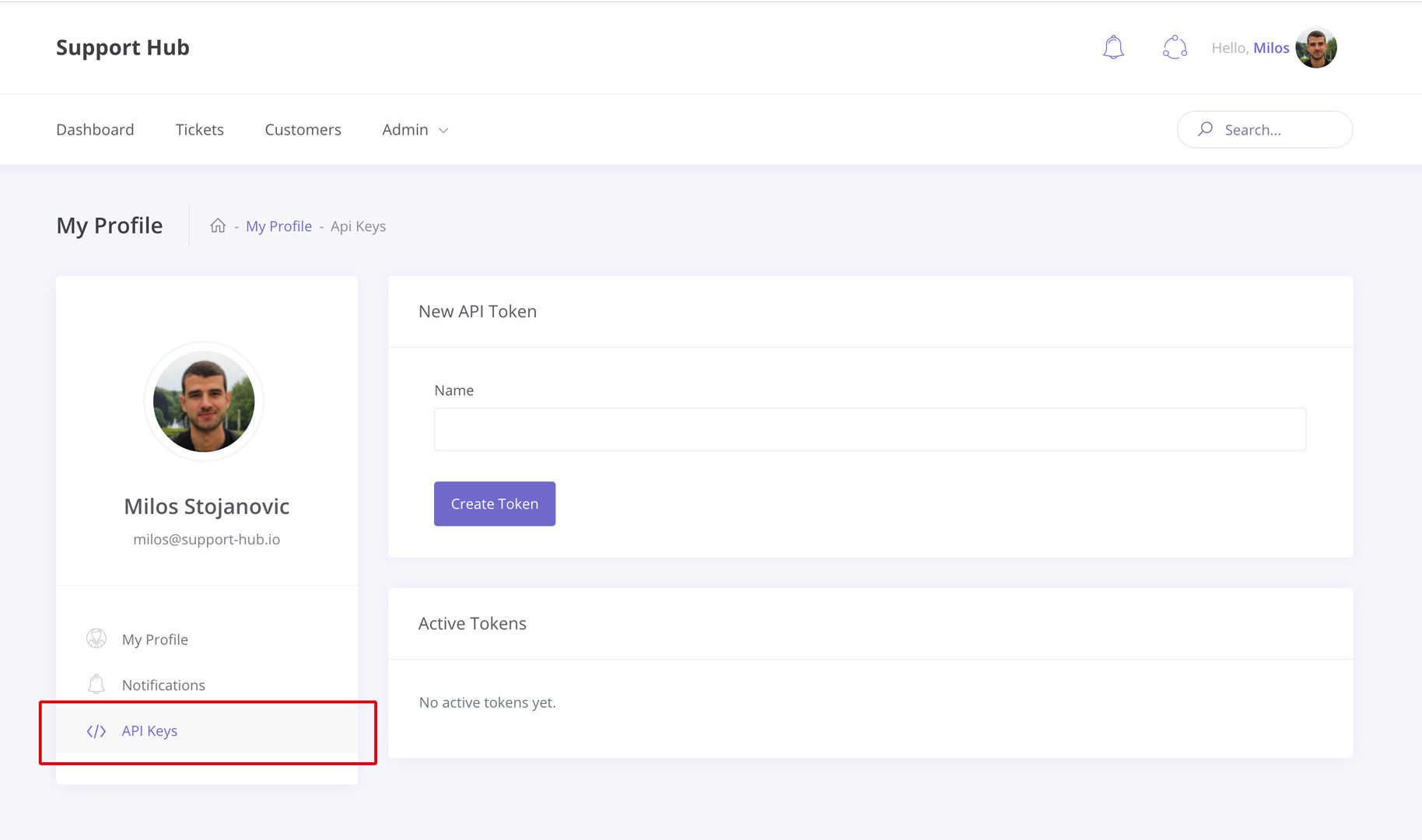
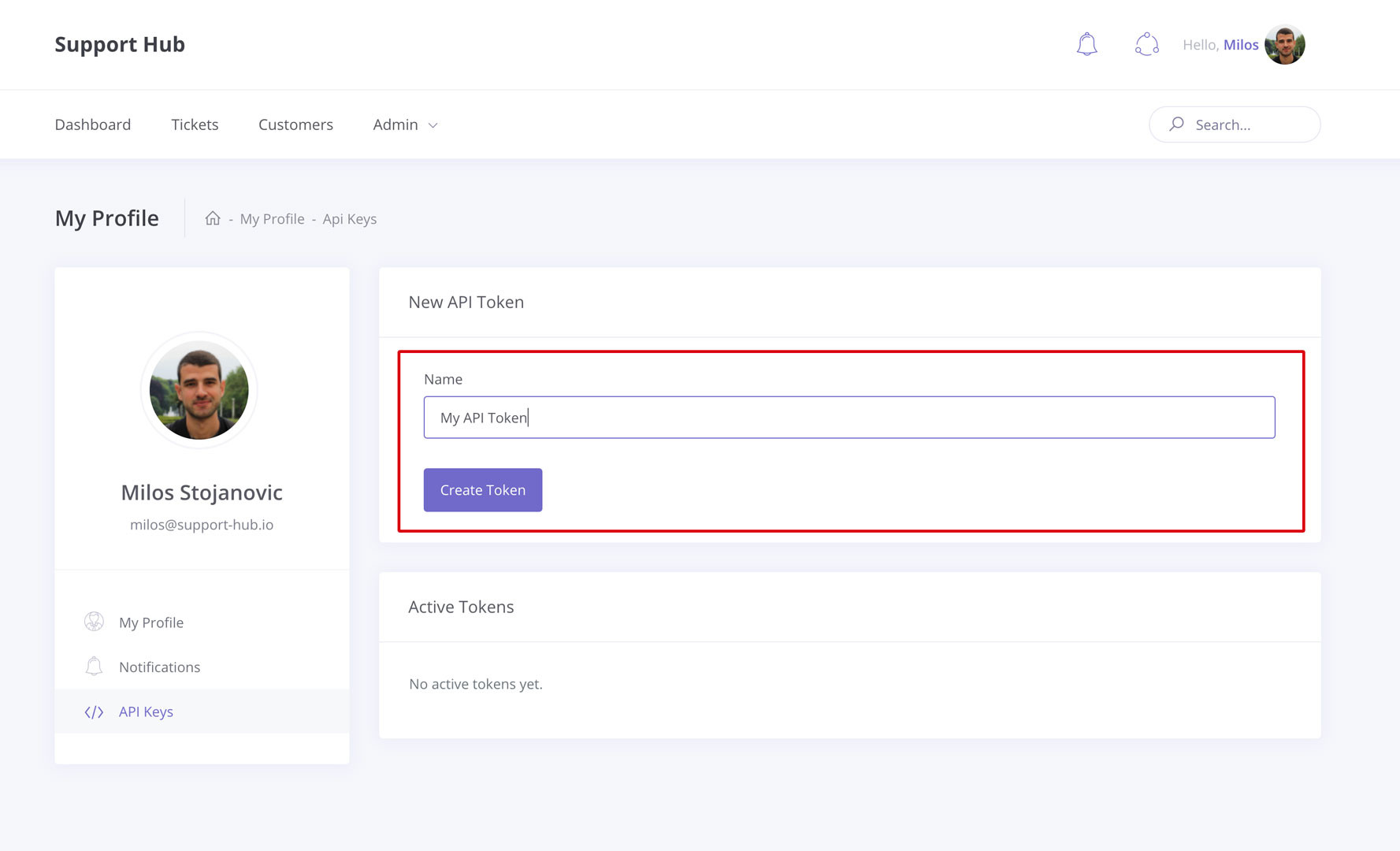
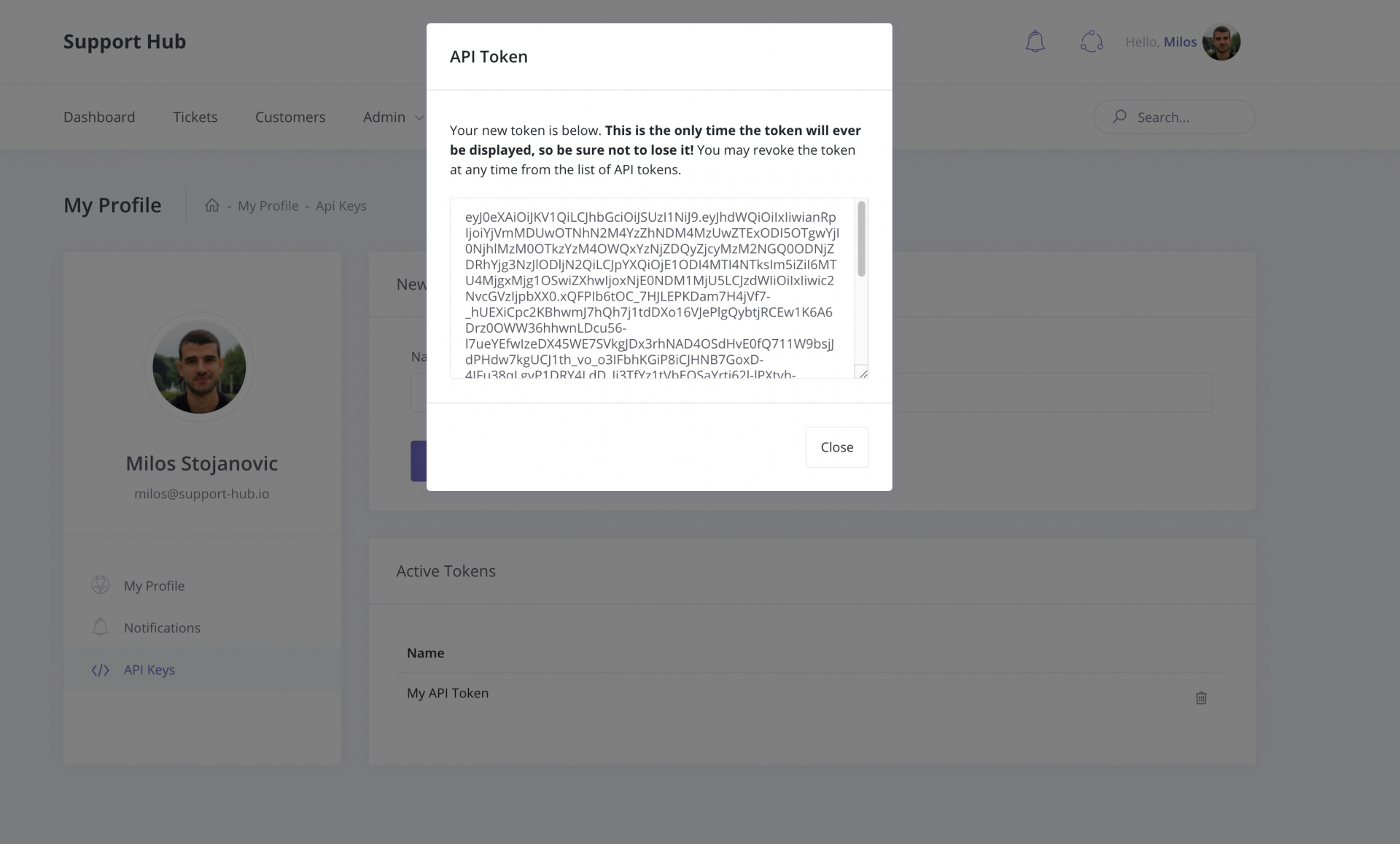
                <![CDATA[<p>To generate a new API token go to your profile section</p><p><img src="https://support-hub--assets.s3.eu-west-2.amazonaws.com/assets/3/images/IevDAkTZq20cviYxkxXXWPqYoQzuHx7gYYJEdgQa.jpeg" style="width:100%;" alt="IevDAkTZq20cviYxkxXXWPqYoQzuHx7gYYJEdgQa.jpeg" /><br /></p><p>and then select "API Keys" from the sidebar</p><p><img src="https://support-hub--assets.s3.eu-west-2.amazonaws.com/assets/3/images/VD07Q7mngOyQE5Be1IU4fCZ8VpK6g7yrYBY1mTkb.jpeg" alt="VD07Q7mngOyQE5Be1IU4fCZ8VpK6g7yrYBY1mTkb.jpeg" /><br /></p><p>Choose any name you want for your new API token and hit the "Create Token" button.</p><p><img src="https://support-hub--assets.s3.eu-west-2.amazonaws.com/assets/3/images/Kcahs3ndGuTZeHaO15DQyXWrB5F1YaZrYzRk7DX7.jpeg" alt="Kcahs3ndGuTZeHaO15DQyXWrB5F1YaZrYzRk7DX7.jpeg" /><br /></p><p>One your token is created, a popup will appear and you will be able to get your token value. Keep in mind that that is the <b>only time when you will see the token </b>so make sure that you don't lose it. </p><p><img src="https://support-hub--assets.s3.eu-west-2.amazonaws.com/assets/3/images/F7mLCa9RWSsiY0KBzAwP3EyGEx6grgrTFDmNOs9d.png" alt="F7mLCa9RWSsiY0KBzAwP3EyGEx6grgrTFDmNOs9d.png" /><br /></p><p>If you want to revoke any token that you have previously created, you can do it by clicking the "trash" icon next to the token's name within the list of active tokens.</p>]]>
            </summary>
                                    <updated>2020-03-10T09:19:36+00:00</updated>
        </entry>
            <entry>
            <title><![CDATA[Create Support Categories from Envato Items]]></title>
            <link rel="alternate" href="https://help.support-hub.io/articles/create-support-categories-from-envato-items" />
            <id>https://help.support-hub.io/71</id>
            <author>
                <name><![CDATA[Milos Stojanovic]]></name>
            </author>
            <summary type="html">
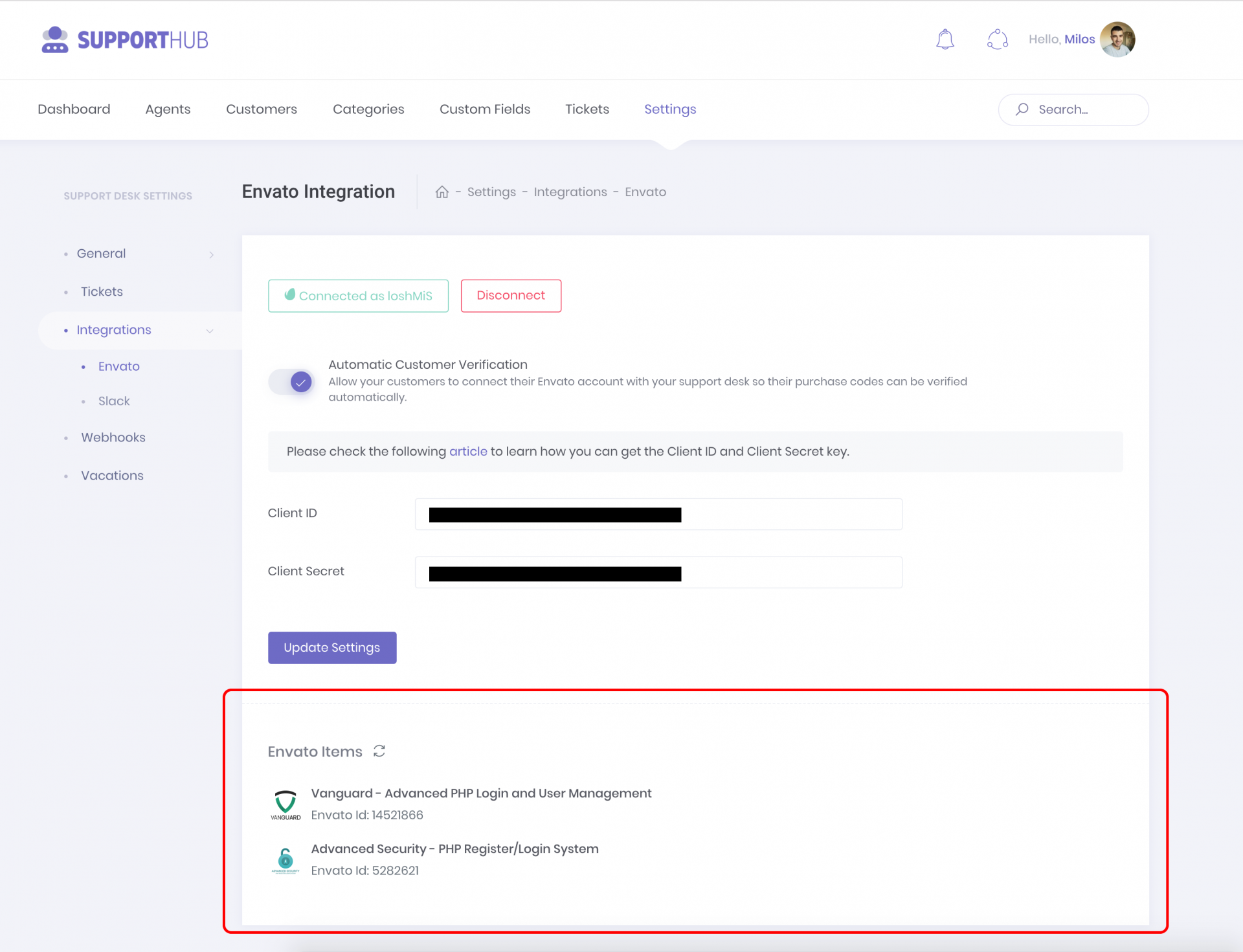
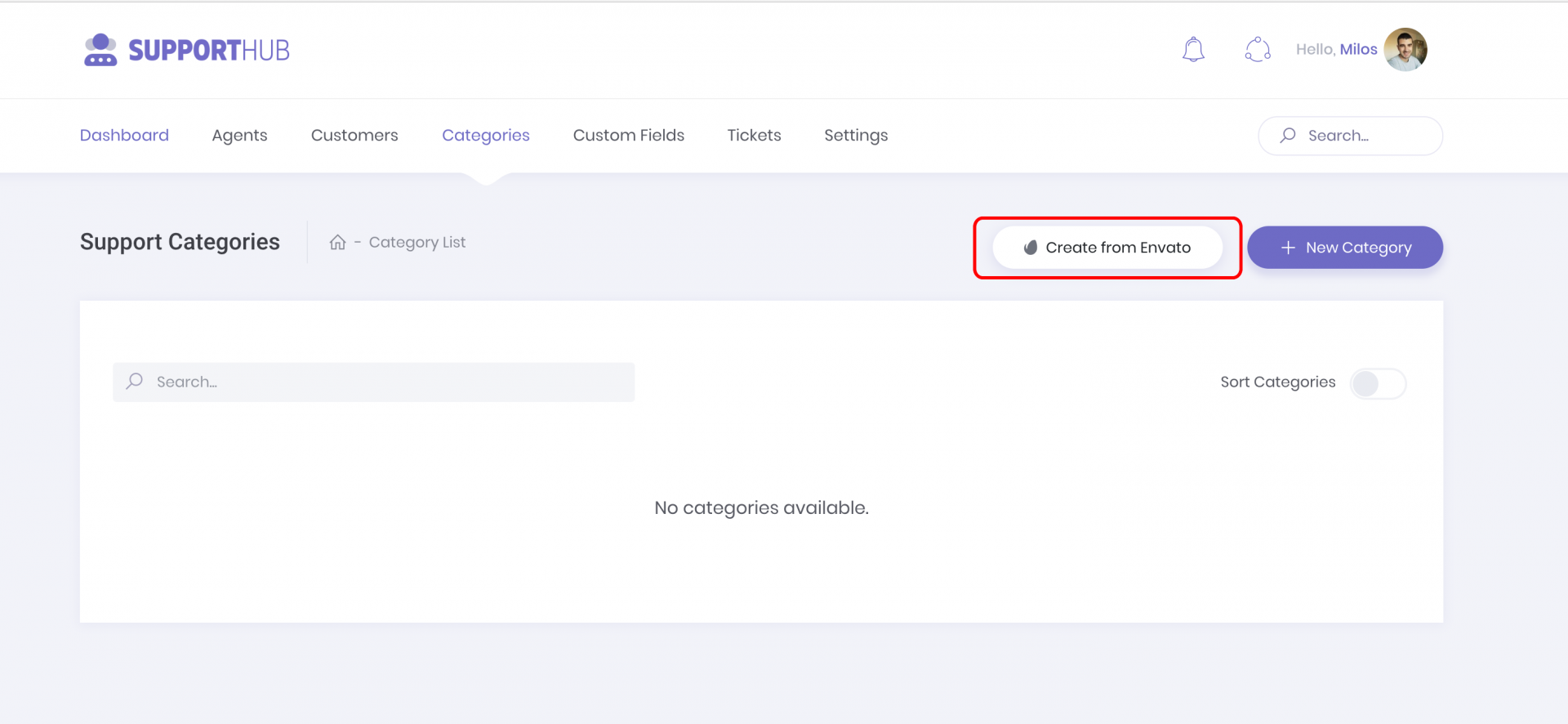
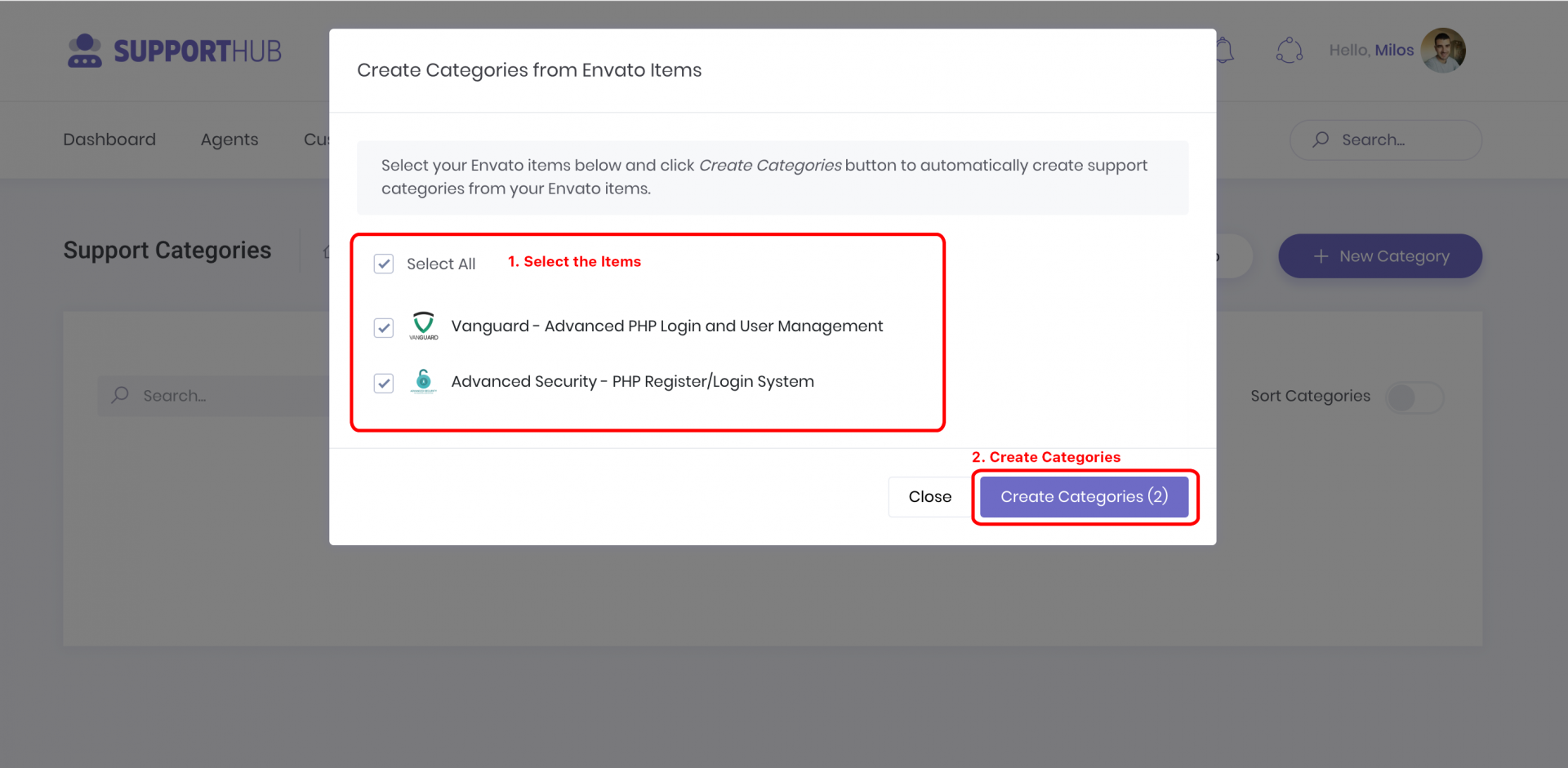
                <![CDATA[<p>To be able to provide the support and actually be able to use the Support Hub, you will need to create support categories. However, if you have a lot of items on ThemeForest or CodeCanyon, creating those categories manually, one by one, can be a pain.</p><p>But don't worry, we thought about that too. Support Hub allows you to easily create support categories from your Envato items. </p><p>All you need to do is the following:</p><ol><li>Connect your Envato account</li><li>Create categories from Envato items</li></ol><h4><span>Connecting an Envato Account</span></h4><p>Everything you need to know about connecting your Envato account is explained inside the <span><a href="/articles/envato-integration" target="_blank" rel="noreferrer noopener">Envato Integration</a></span> article. </p><p>Once your Envato account is connected, Support Hub will fetch all the info about your ThemeForest and CodeCanyon items and they will be visible on "Settings &gt;&gt; Integrations &gt;&gt; Envato" page.</p><p><img src="https://support-hub--assets.s3.eu-west-2.amazonaws.com/assets/3/images/wlibrcnaKB6ICvJ3PhSkboRGeteH0MqCuF0lgYXB.png" alt="wlibrcnaKB6ICvJ3PhSkboRGeteH0MqCuF0lgYXB.png" /><br /></p><h4>Create categories from Envato items<br /></h4><p>After connecting your Envato account, head over to Categories page and click the <i>Create from Envato</i> button displayed on the screenshot below</p><p>
<img src="https://support-hub--assets.s3.eu-west-2.amazonaws.com/assets/3/images/krygGZX6rxmcpcxC3unCaXQy73bij2T2zLa1kVL4.png" alt="krygGZX6rxmcpcxC3unCaXQy73bij2T2zLa1kVL4.png" /></p><p>The modal with all your Envato items will appear where you can select the items for which you want to create your support categories. Once you have selected the desired list of items, click the Create Categories button and you are good to go. Support categories will be automatically created and associated with those items and your help desk is now ready to accept support tickets.</p><p><img src="https://support-hub--assets.s3.eu-west-2.amazonaws.com/assets/3/images/OavJlkNRs7B5I5KrKePL7j8cMzEs4m3T83qasamR.png" alt="OavJlkNRs7B5I5KrKePL7j8cMzEs4m3T83qasamR.png" /><br /></p>]]>
            </summary>
                                    <updated>2019-01-17T10:14:57+00:00</updated>
        </entry>
            <entry>
            <title><![CDATA[How to set up your custom domain]]></title>
            <link rel="alternate" href="https://help.support-hub.io/articles/how-to-set-up-your-custom-domain" />
            <id>https://help.support-hub.io/84</id>
            <author>
                <name><![CDATA[Milos Stojanovic]]></name>
            </author>
            <summary type="html">
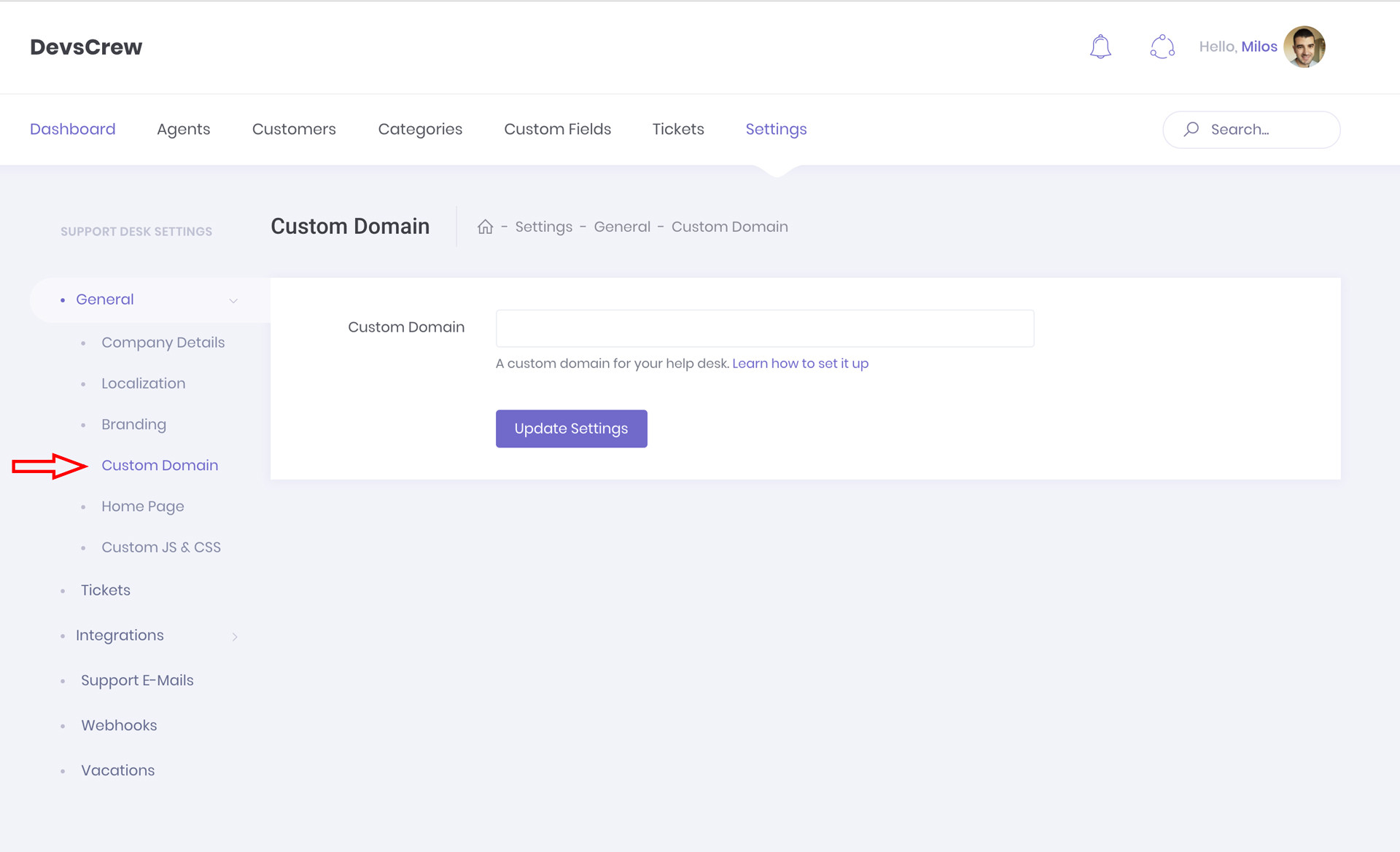
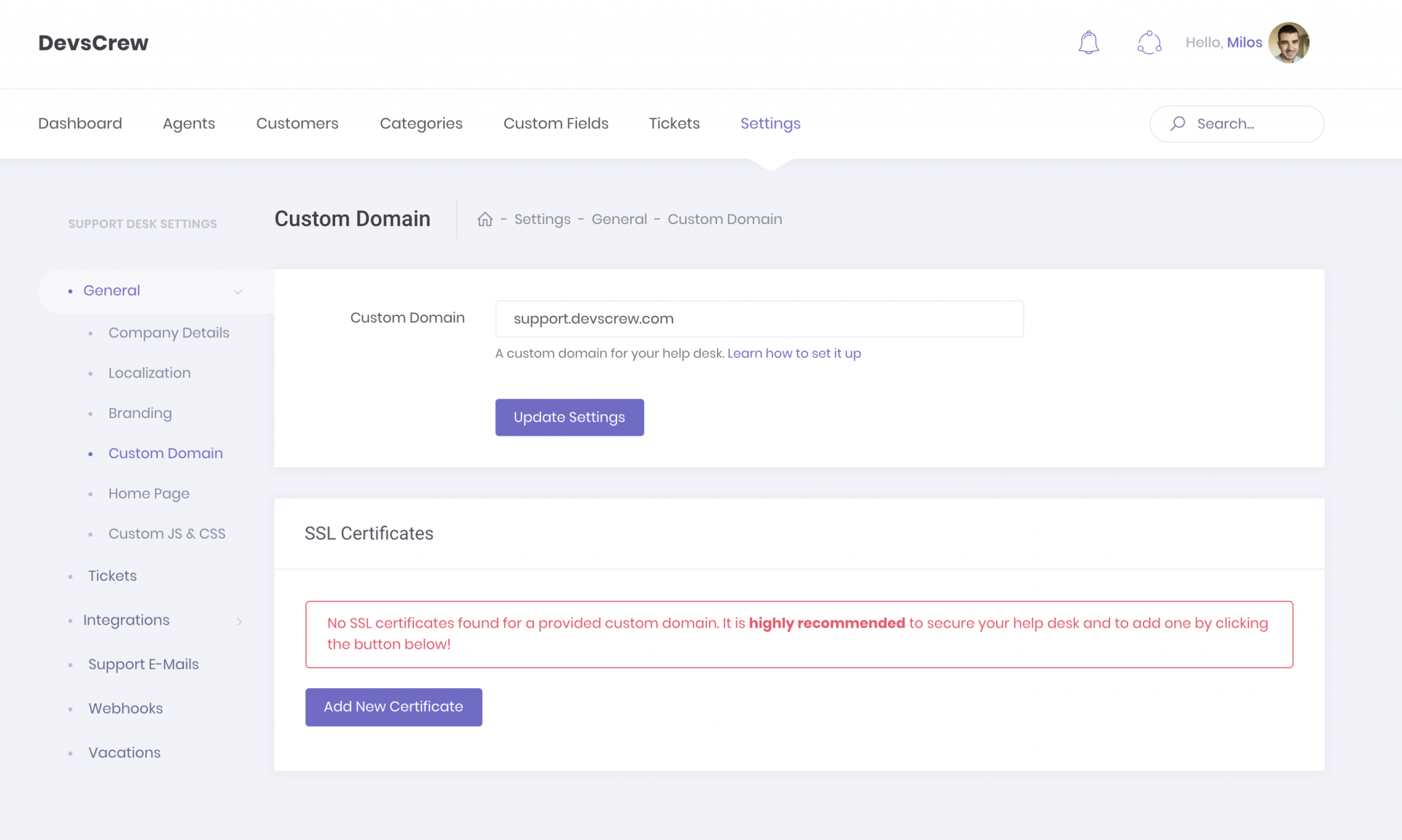
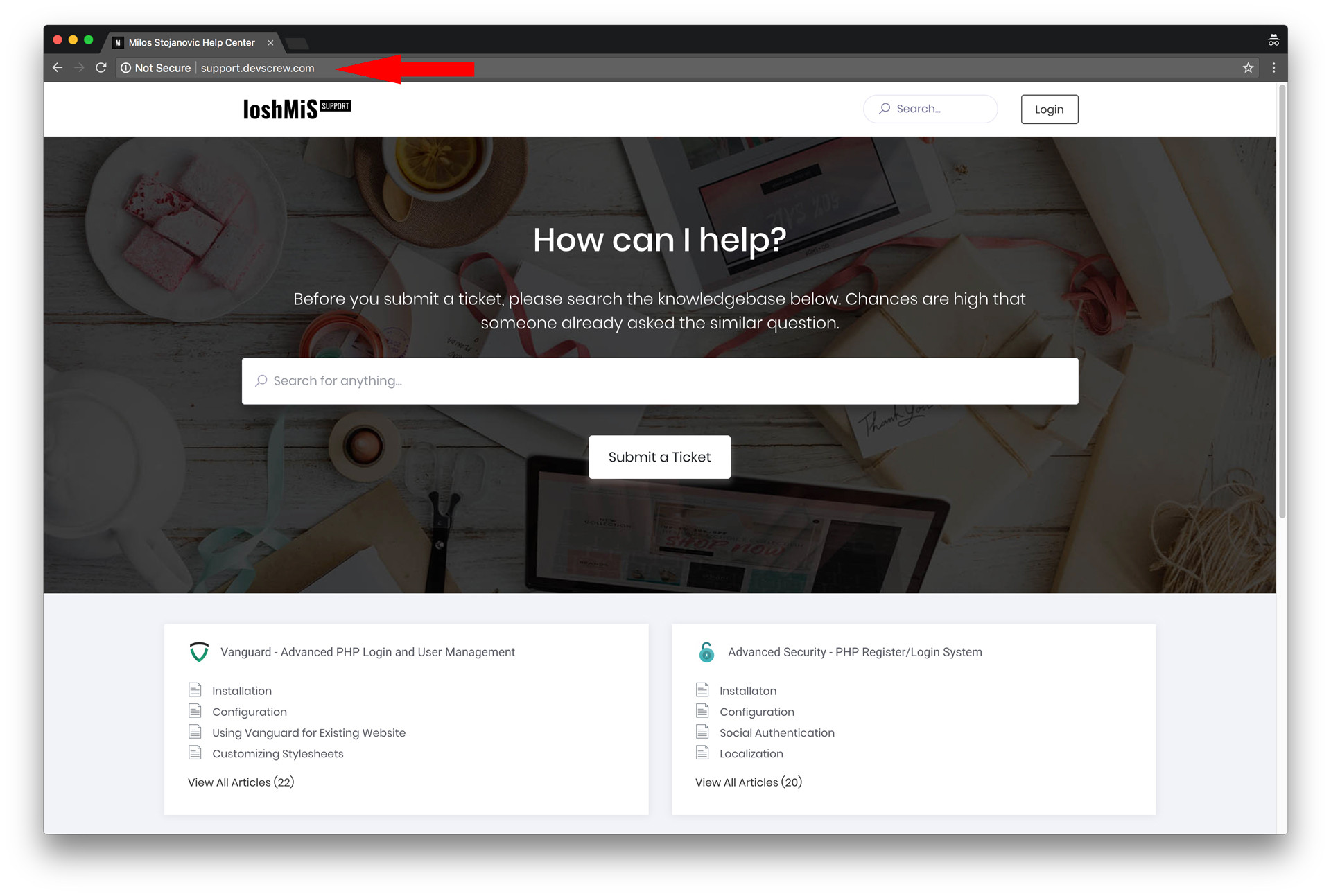
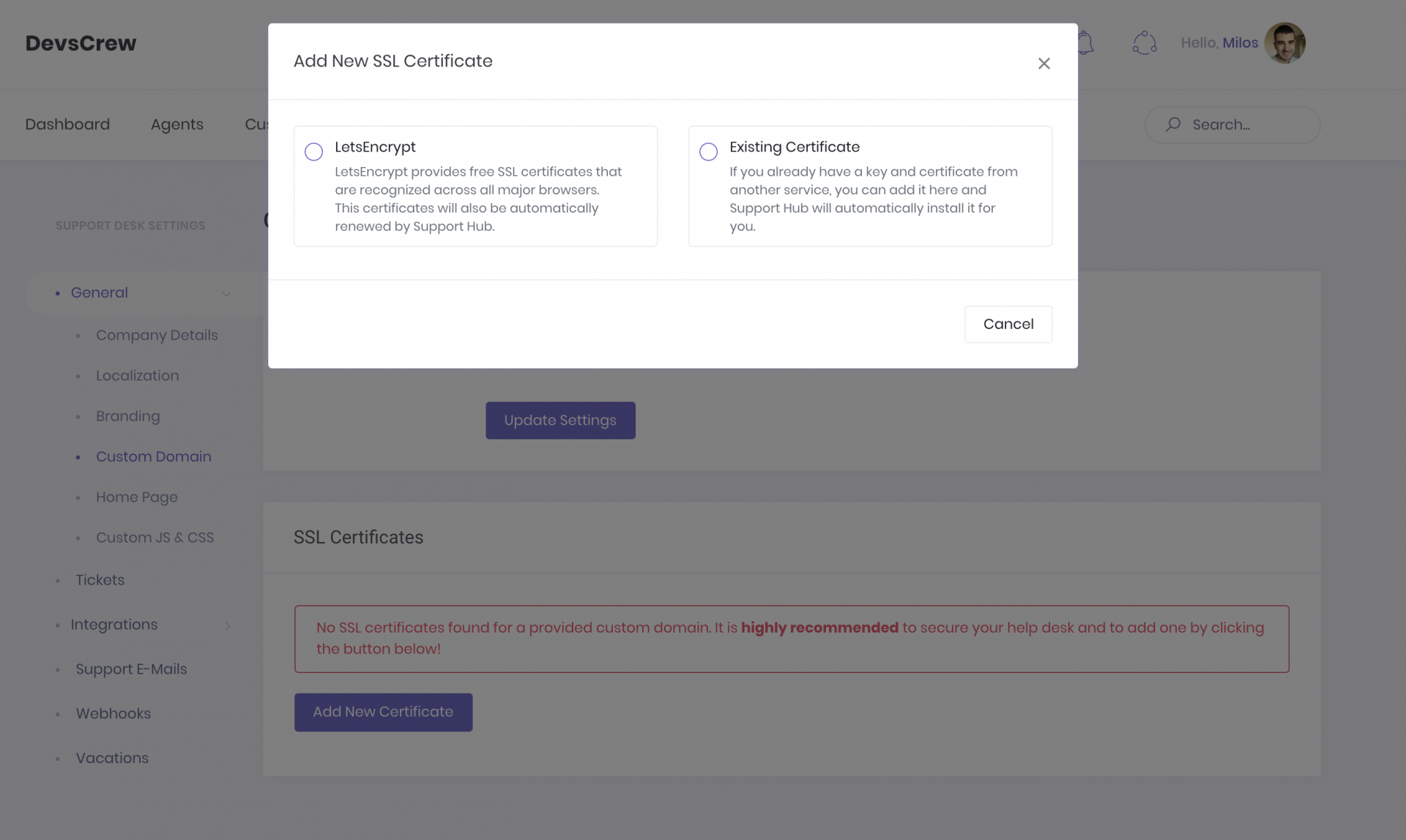
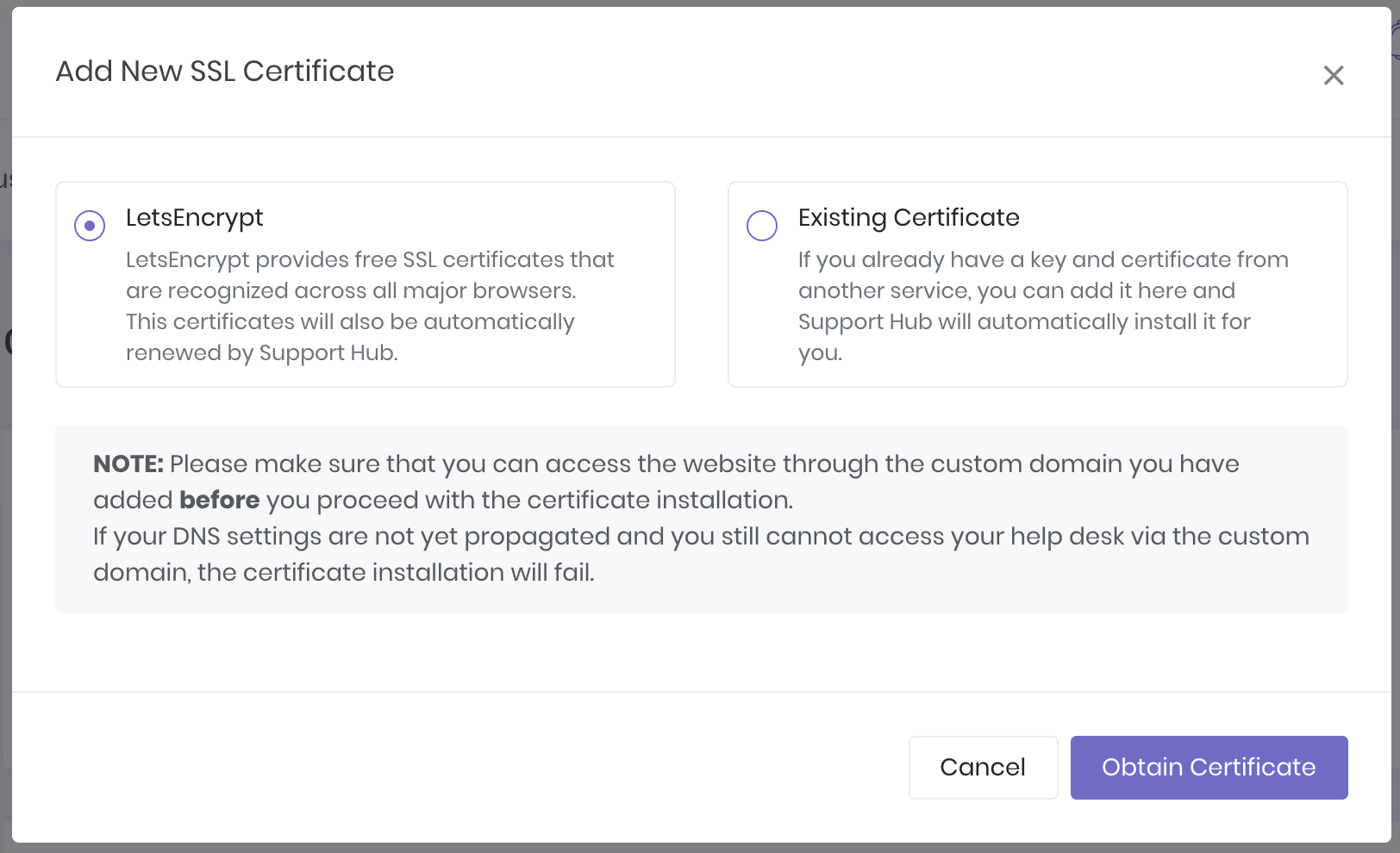
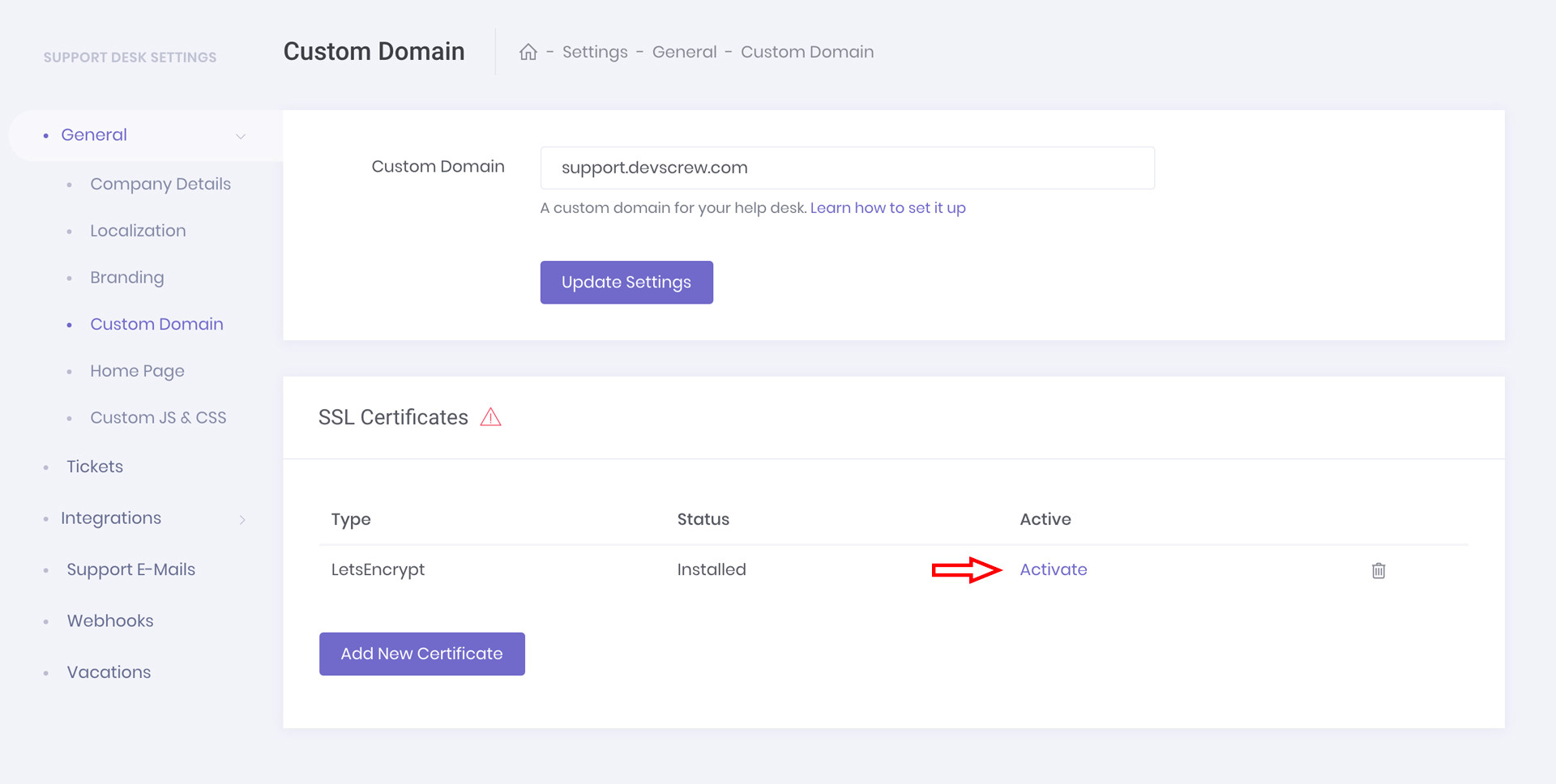
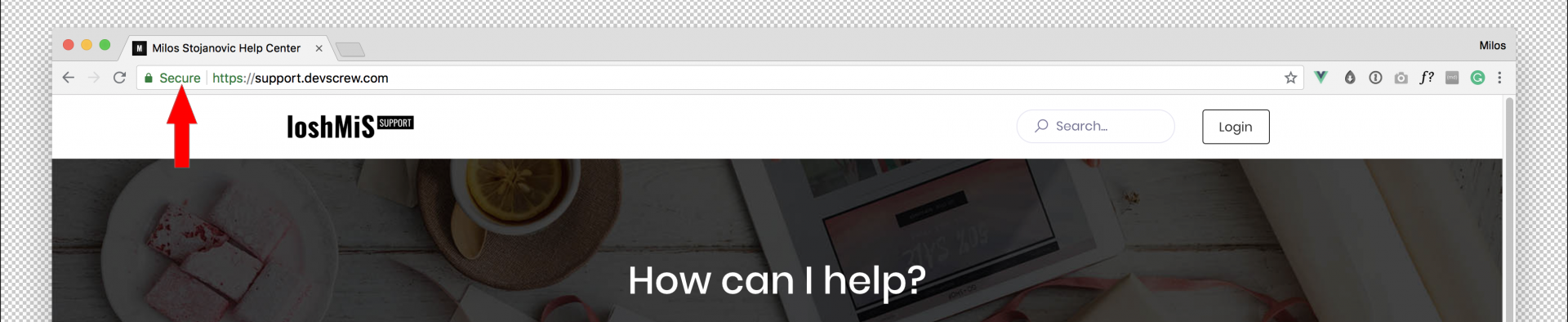
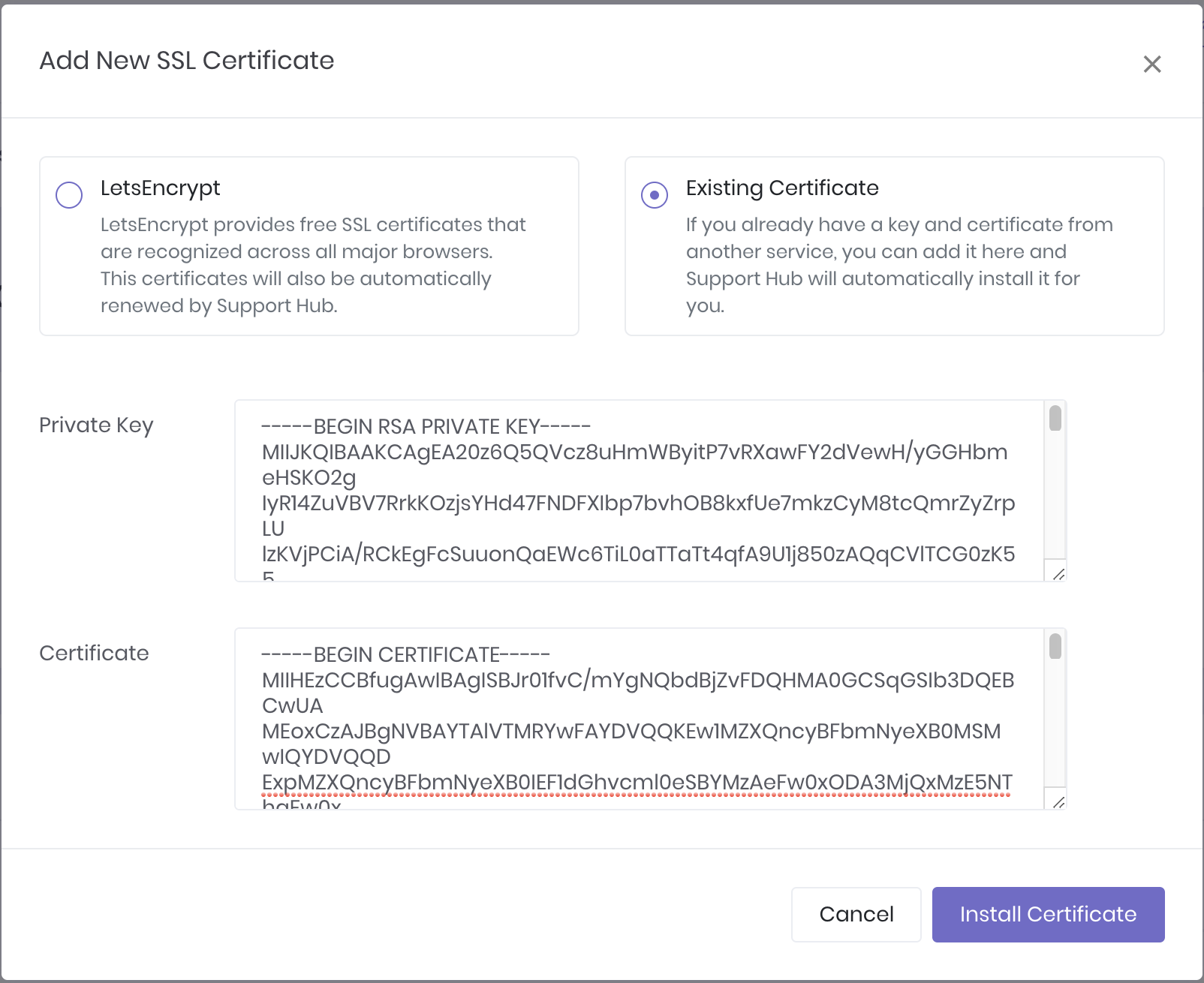
                <![CDATA[<p>When you create a Support Hub account, your help desk will be available at the support-hub.io subdomain you chose during the sign-up process. This means that if you select a <b>test</b> subdomain on sign-up, you will be able to access your help desk via <a href="https://test.support-hub.io" target="_blank" rel="noreferrer noopener">https://test.support-hub.io</a>. </p><p>However, if you would like to use a custom domain or subdomain like support.yourcompany.com for example, here is how you can set that up:</p><h4>1) Help Desk Branding Settings</h4><p>First, you will need to update the custom domain settings field for your account. </p><p>When you are logged in as admin, there is a new <b>Settings &gt; General &gt; Custom Domain</b> section where you can set up your custom help desk domain and SSL certificates.</p><p><img src="https://support-hub--assets.s3.eu-west-2.amazonaws.com/assets/3/images/vm2AirmQLMgSA0spcuHnpOmZmhhHO2LjbD65Agwp.jpeg" alt="vm2AirmQLMgSA0spcuHnpOmZmhhHO2LjbD65Agwp.jpeg" /></p><p>To add a custom domain, simply fill the custom domain input field with your desired domain (just the domain, <b>without</b> <b><i>http://</i>,<i>https://</i> or <i>www</i> part</b>) and press <b>Update Settings</b> button. </p><p>Support Hub will set up all the necessary things for you and you should see the screen below:</p><p><img src="https://support-hub--assets.s3.eu-west-2.amazonaws.com/assets/3/images/BTuBe9NNfskM131ICTWKdHhN96joaaiMP1bP6r5P.png" alt="BTuBe9NNfskM131ICTWKdHhN96joaaiMP1bP6r5P.png" /></p><p><b>NOTE: </b>To remove and disable custom domain help desk access, just remove the domain from the input field (leave the field blank) and click the<b> Update Settings</b> button.</p><h4>2) Custom CNAME Record</h4><p>Next step is to set up a custom CNAME DNS record for your desired domain. The way you configure the DNS records depends on the DNS provider you use, so if you have some issues we will recommend you to contact your DNS hosting provider support to help you out with it.</p><p>As an example, here is how you can configure it with <a href="https://www.cloudflare.com/" target="_blank" rel="noreferrer noopener">CloudFlare</a>:</p><ol><li>Set up CloudFlare as a DNS resolver. More info on how to do it is available inside <a href="https://support.cloudflare.com/hc/en-us/articles/205195708-Step-3-Change-your-domain-name-servers-to-CloudFlare" target="_blank" rel="noreferrer noopener">CloudFlare's documentation</a>.</li><li>Go to a <i>DNS</i> section in CloudFlare and add one more CNAME record. For our example, we will name it "support"</li><li>Point it at the Support Hub's domain: <b>custom.support-hub.io <br />NOTE: </b>Don't be confused, it doesn't matter what your Support Hub subdomain is, you should <b>always</b> point the DNS to <b>custom.support-hub.io</b>!</li></ol><p>We want to use CloudFlare for DNS purposes only which means that we need to click on the Cloud icon to make it gray. The end result for this CNAME record will look like the following:</p><p><img src="https://support-hub--assets.s3.eu-west-2.amazonaws.com/assets/3/images/geWszquejrcK9oi8QTqIuHxBoXojer5T842yRB6b.png" alt="geWszquejrcK9oi8QTqIuHxBoXojer5T842yRB6b.png" /><br /></p><p><b>NOTE: </b>Keep in mind that DNS changes sometimes can take <b>up to 72 hours</b> to take effect, but it is usually much faster and it should take effects in a matter of minutes.</p><p>As soon as DNS records are propagated you can visit your custom domain in a browser (in our case it is support.devscrew.com) and it should successfully open your help desk.</p><p><img src="https://support-hub--assets.s3.eu-west-2.amazonaws.com/assets/3/images/GM142qA5cq5Dtrnwgmcq869ZgwMbUbdivBUhjl1X.jpeg" alt="GM142qA5cq5Dtrnwgmcq869ZgwMbUbdivBUhjl1X.jpeg" /><br /></p><h4>3) SSL Configuration</h4><p>Although you can access your help desk through a custom domain now, there is no security certificate installed for that custom domain and it will appear as "not secure" in some browsers.</p><p><img src="https://support-hub--assets.s3.eu-west-2.amazonaws.com/assets/3/images/DdbrNWYYHoPOb5njYPx9mm6iXRR8VHgkJVbbl5Ma.jpeg" alt="DdbrNWYYHoPOb5njYPx9mm6iXRR8VHgkJVbbl5Ma.jpeg" /><br /></p><p>SSL (Secure Socket Layer) is an encryption protocol that ensures secure communications with your website. When you have a proper SSL certificate installed it means that all communications between a web browser and the server are encrypted. <b>It is highly recommended to install the SSL certificate to make your help desk secure!</b></p><p>Luckily, Support Hub makes installing an SSL certificate for your custom domain a breeze. </p><p>While you are on a Custom Domain settings page, click the <b>Add New Certificate</b> button. It will open a pop-up modal where you can select how you want to install the certificate by choosing between a free automatically generated certificate from <a href="https://letsencrypt.org/" target="_blank" rel="noreferrer noopener">LetsEncrypt</a> or by uploading your own SSL certificate if you already have one.</p><p><img src="https://support-hub--assets.s3.eu-west-2.amazonaws.com/assets/3/images/T2yJHBOZLq5X3cATiGd9TPw2aGIheh56HwCkwLhP.png" alt="T2yJHBOZLq5X3cATiGd9TPw2aGIheh56HwCkwLhP.png" /></p><p>Support Hub will allow you to have multiple certificates installed and only one active certificate, which means that you can change the active certificate whenever you want.</p><h5>Installing LetsEncrypt Certificate</h5><p>The easiest way to secure your website with a valid SSL certificate is to install one from LetsEncrypt. To do that, just select the "LetsEncrypt" option and click <b>Obtain Certificate</b> button.</p><p><img src="https://support-hub--assets.s3.eu-west-2.amazonaws.com/assets/3/images/vFSzZACknPXXSApD75Ee26A1fCYbo2monjUPJUm2.png" alt="vFSzZACknPXXSApD75Ee26A1fCYbo2monjUPJUm2.png" /></p><p>Support Hub will do all the work <b>automatically</b> and obtain a valid SSL certificate for your custom domain. </p><p>As soon as the certificate is installed, all you need to do is to activate it by clicking the "Activate" link like in the example below:</p><p><img src="https://support-hub--assets.s3.eu-west-2.amazonaws.com/assets/3/images/47XWdydyouy8Aee0Gwsfyvi2JM5EApOib3pPKd4c.jpeg" alt="47XWdydyouy8Aee0Gwsfyvi2JM5EApOib3pPKd4c.jpeg" /><br /></p><p>It will take a few seconds to activate the certificate, but as soon as it is activated your help desk will be fully secured if you access it via the custom domain.</p><p><img src="https://support-hub--assets.s3.eu-west-2.amazonaws.com/assets/3/images/ScYOSj9vi3ZwWxHVC7R5esWq0H8XT2JBJrU8zdUn.png" alt="ScYOSj9vi3ZwWxHVC7R5esWq0H8XT2JBJrU8zdUn.png" /></p><p><b>IMPORTANT: </b>All <b>active </b>LetsEncrypt certificates will be <b>automatically</b> <b>renewed</b> by Support Hub so you don't need to worry about it.</p><h5>Uploading Existing Certificate</h5><p>If you already have an SSL certificate generated somewhere else, you can easily upload it to Support Hub and use that one to secure your help desk custom domain.</p><p>To upload an existing certificate, select the "Existing Certificate" option inside the "Add New SSL Certificate" modal, paste your certificate private key and the certificate itself and hit the <b>Install Certificate</b> button.</p><p><img src="https://support-hub--assets.s3.eu-west-2.amazonaws.com/assets/3/images/LiyXrnGPQV1gKf9Y6DQBoqkIyJQYbpSLveRgJp8M.png" alt="LiyXrnGPQV1gKf9Y6DQBoqkIyJQYbpSLveRgJp8M.png" /></p><p>Support Hub will install the certificate for you and you can then activate it by clicking the "Activate" link, the same way you do it for LetsEncrypt certificates.</p><p>Keep in mind that manually uploaded certificates cannot be automatically renewed by Support Hub, which means that you will need to keep an eye on certificate expiration date and upload a new one before it expires.</p><p></p>]]>
            </summary>
                                    <updated>2018-10-05T14:09:46+00:00</updated>
        </entry>
            <entry>
            <title><![CDATA[FAQ]]></title>
            <link rel="alternate" href="https://help.support-hub.io/articles/faq-1706" />
            <id>https://help.support-hub.io/1706</id>
            <author>
                <name><![CDATA[Milos Stojanovic]]></name>
            </author>
            <summary type="html">
                <![CDATA[<h4>Where can I find the API documentation?</h4><p>Please check the <a href="https://developer.support-hub.io">https://developer.support-hub.io</a><span> for complete API reference.</span></p><p><span><br /></span></p><h4><span>My API returns 429 Too Many Requests HTTP response, what should I do?</span></h4><p>The Support Hub API is rate-limited and your rate limit depends on your subscription plan. For more info please check the API docs: <a href="https://developer.support-hub.io/1.0/guide.html#rate-limit">https://developer.support-hub.io/1.0/guide.html#rate-limit</a> </p>]]>
            </summary>
                                    <updated>2020-03-10T09:20:15+00:00</updated>
        </entry>
            <entry>
            <title><![CDATA[Source Code Formatting]]></title>
            <link rel="alternate" href="https://help.support-hub.io/articles/source-code-formatting" />
            <id>https://help.support-hub.io/62</id>
            <author>
                <name><![CDATA[Milos Stojanovic]]></name>
            </author>
            <summary type="html">
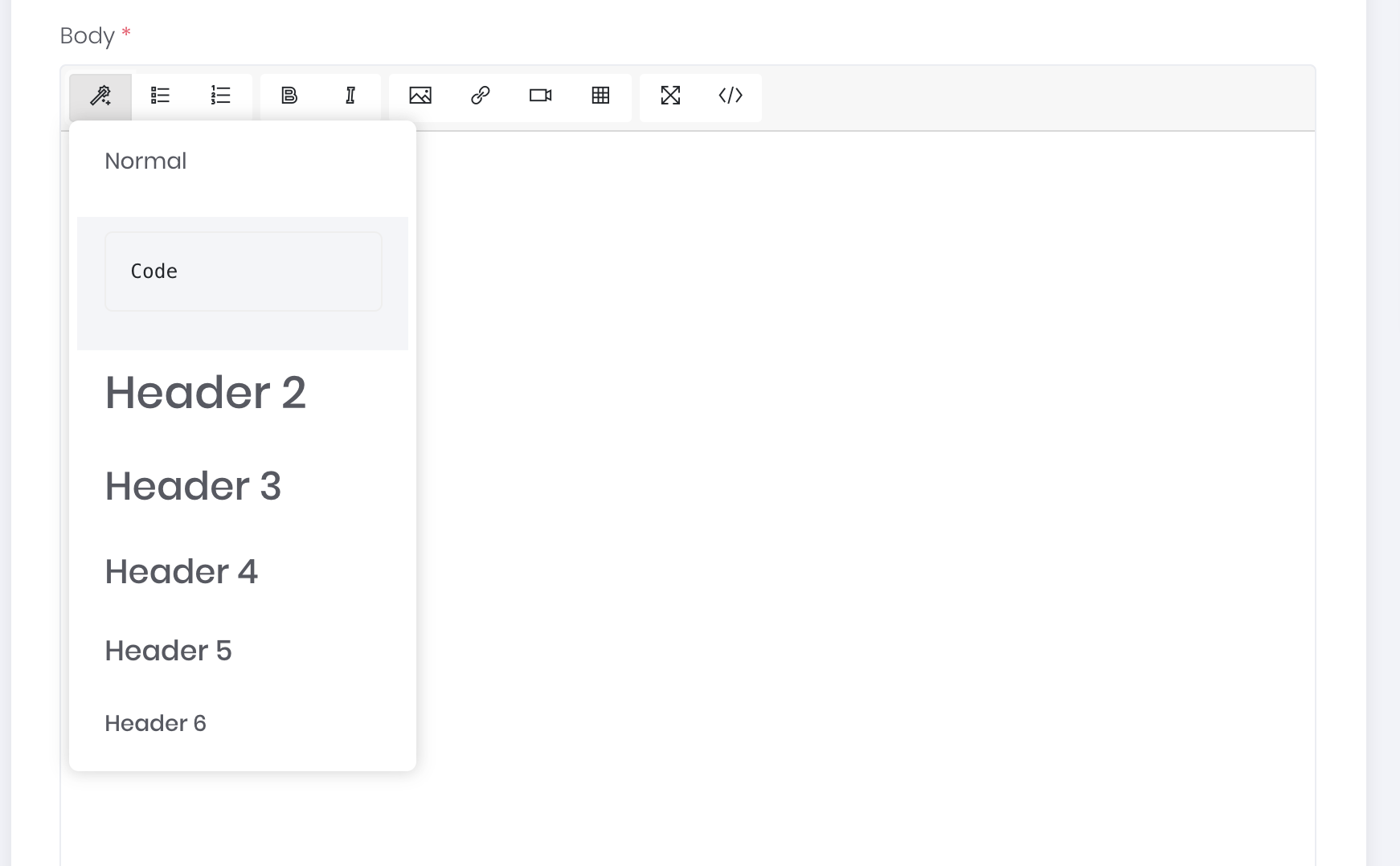
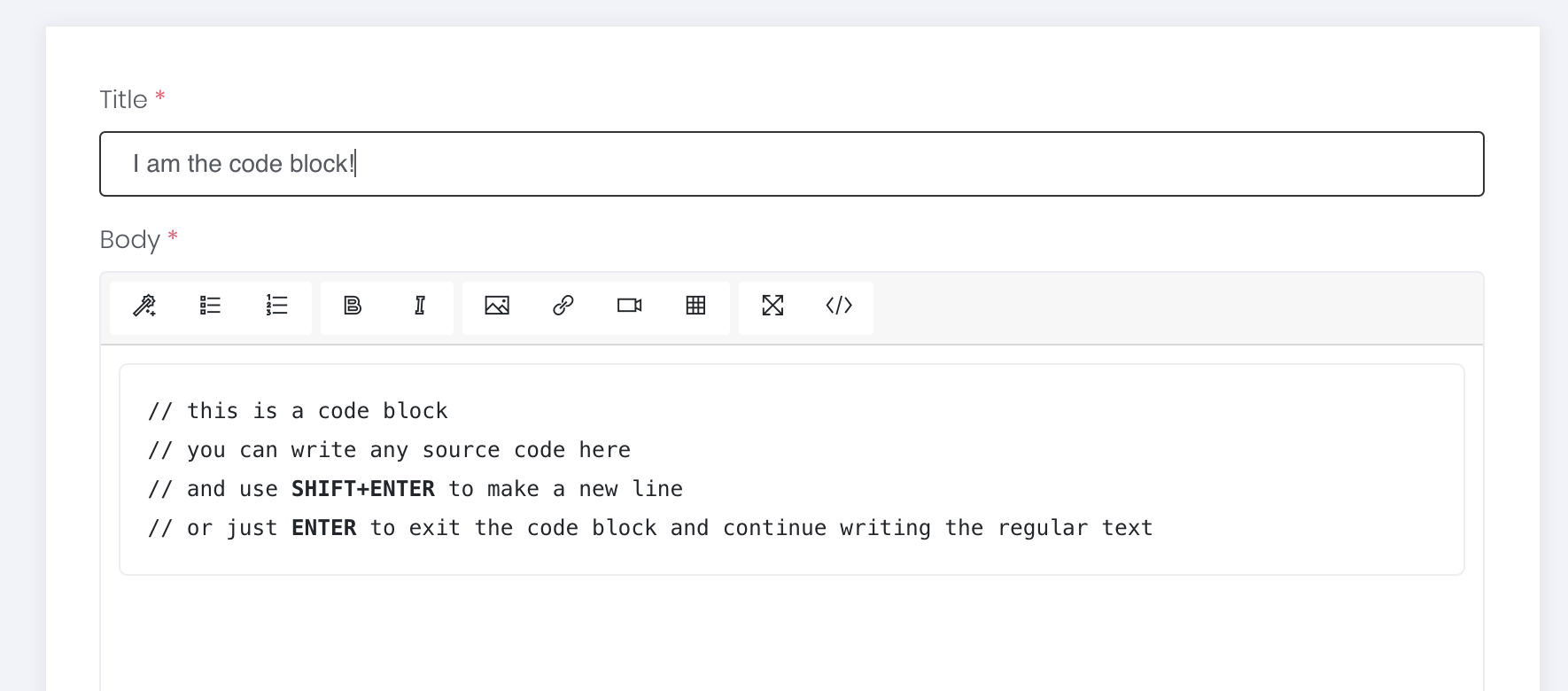
                <![CDATA[<p>If you want to include a properly formatted source code into your response or article, all you need to do is to click the magic wand icon (the first one in the toolbar) and select a code block from a drop-down.</p><p><img src="https://support-hub--assets.s3.eu-west-2.amazonaws.com/assets/3/images/Fb1uVjGcweAz3Nl0UFCmBigShsb0wAaDmsNdqrLE.png" alt="Fb1uVjGcweAz3Nl0UFCmBigShsb0wAaDmsNdqrLE.png" /><br /></p><p>The code block will look like the one displayed below and you can press <b>SHIFT+ENTER</b> whenever you want to add a new line inside the code block or <b>ENTER</b> if you want to leave the code block and continue writing the regular text.</p><p><img src="https://support-hub--assets.s3.eu-west-2.amazonaws.com/assets/3/images/ZJEl4MRQ9HCipvzcHzKpr9ouitDerlggZ5DVQNSH.png" alt="ZJEl4MRQ9HCipvzcHzKpr9ouitDerlggZ5DVQNSH.png" /><br /></p>]]>
            </summary>
                                    <updated>2018-08-01T07:41:55+00:00</updated>
        </entry>
            <entry>
            <title><![CDATA[MailChimp Integration]]></title>
            <link rel="alternate" href="https://help.support-hub.io/articles/mailchimp-integration" />
            <id>https://help.support-hub.io/75</id>
            <author>
                <name><![CDATA[Milos Stojanovic]]></name>
            </author>
            <summary type="html">
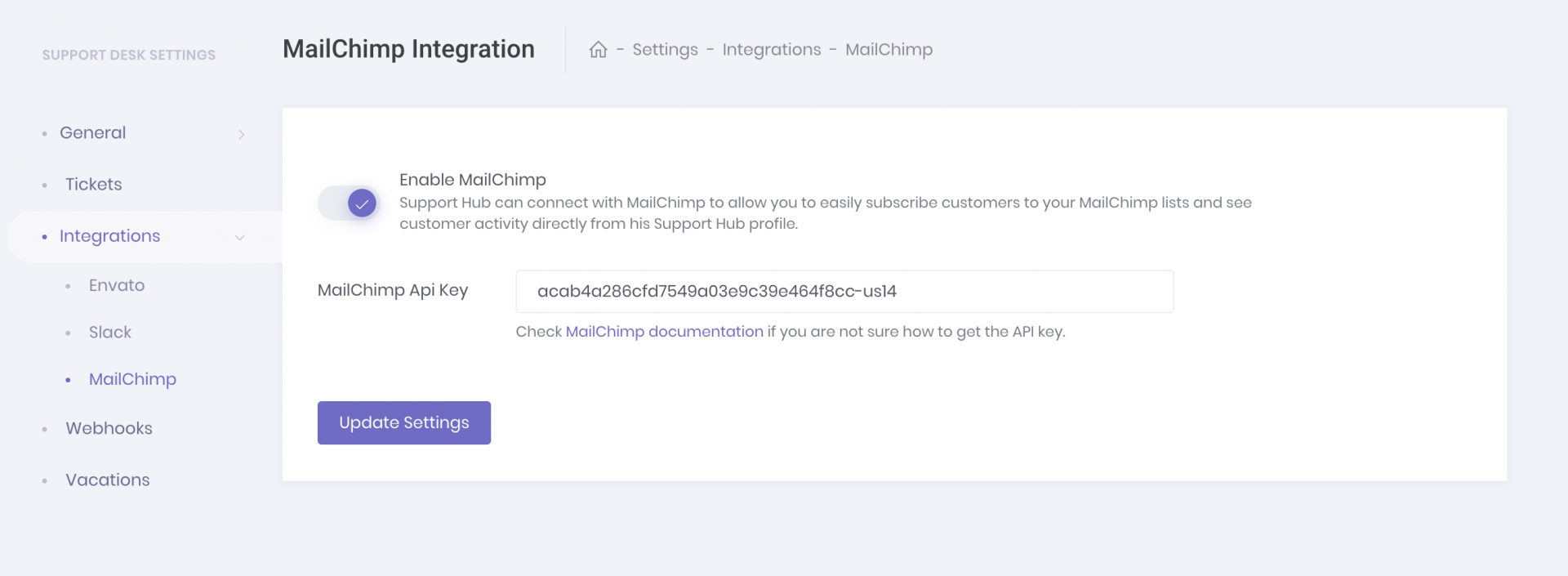
                <![CDATA[<p>Support Hub allows you to connect your account with MailChimp so you can easily subscribe any customer, or multiple customers at once, to your MailChimp lists.</p><p>Of course, the integration is pretty simple, and all you need is the MailChimp API key. If you are not sure how to get one, please check the <a href="https://kb.mailchimp.com/integrations/api-integrations/about-api-keys" target="_blank" rel="noreferrer noopener">MailChimp documentation</a>.</p><h4>Enable MailChimp Integration</h4><p>Once you get your API key, head over to "<i>Settings &gt; Integrations &gt; MailChimp"</i> page, enable the integration by clicking on the switch, paste the API key into the input field and click <i>Update Settings </i>button.</p><p><img src="https://support-hub--assets.s3.eu-west-2.amazonaws.com/assets/3/images/aZjrs6Da5fXtUUy2UbBy5e6mDzsRzK2m6JodKerz.png" alt="aZjrs6Da5fXtUUy2UbBy5e6mDzsRzK2m6JodKerz.png" /></p><p>If your API key is correct, you will get the success message which means that your Support Hub account is now connected with your MailChimp account.</p><p>To learn how you can subscribe or unsubscribe your customers from MailChimp, check the following article: <span><a href="/articles/managing-customer-mailchimp-subscription-status" target="_blank" rel="noreferrer noopener">Managing Customer MailChimp Subscription Status</a></span> </p>]]>
            </summary>
                                    <updated>2019-01-17T10:16:20+00:00</updated>
        </entry>
            <entry>
            <title><![CDATA[Quick Article Linking]]></title>
            <link rel="alternate" href="https://help.support-hub.io/articles/quick-article-linking" />
            <id>https://help.support-hub.io/70</id>
            <author>
                <name><![CDATA[Milos Stojanovic]]></name>
            </author>
            <summary type="html">
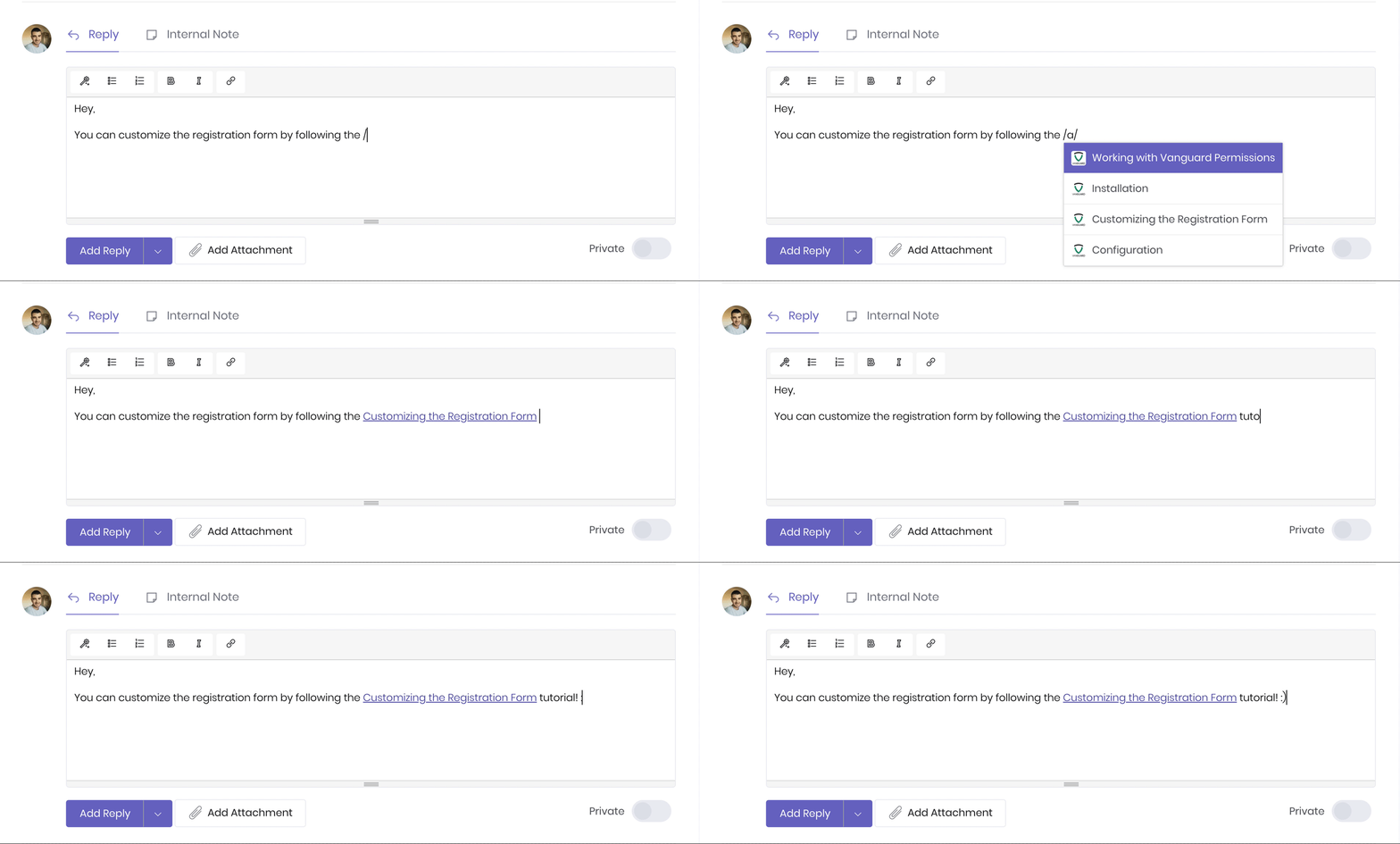
                <![CDATA[<p>From now on you can quickly link articles by typing <span><b>/a/</b></span> and selecting the article from the list of articles that will appear. </p><p><img src="https://support-hub--assets.s3.eu-west-2.amazonaws.com/assets/3/images/b9jNIiYsTc10lyn5xbJw9VuOdin1gCpZWf2isEgW.gif" alt="b9jNIiYsTc10lyn5xbJw9VuOdin1gCpZWf2isEgW.gif" /></p><p>If you are writing a new article, all the articles that will appear in the list will be scoped to selected article category. Also, if you are replying to a ticket, articles that will appear will be from the same category that the ticket belongs to. </p>]]>
            </summary>
                                    <updated>2018-08-01T07:41:55+00:00</updated>
        </entry>
            <entry>
            <title><![CDATA[Managing Customer MailChimp Subscription Status]]></title>
            <link rel="alternate" href="https://help.support-hub.io/articles/managing-customer-mailchimp-subscription-status" />
            <id>https://help.support-hub.io/76</id>
            <author>
                <name><![CDATA[Milos Stojanovic]]></name>
            </author>
            <summary type="html">
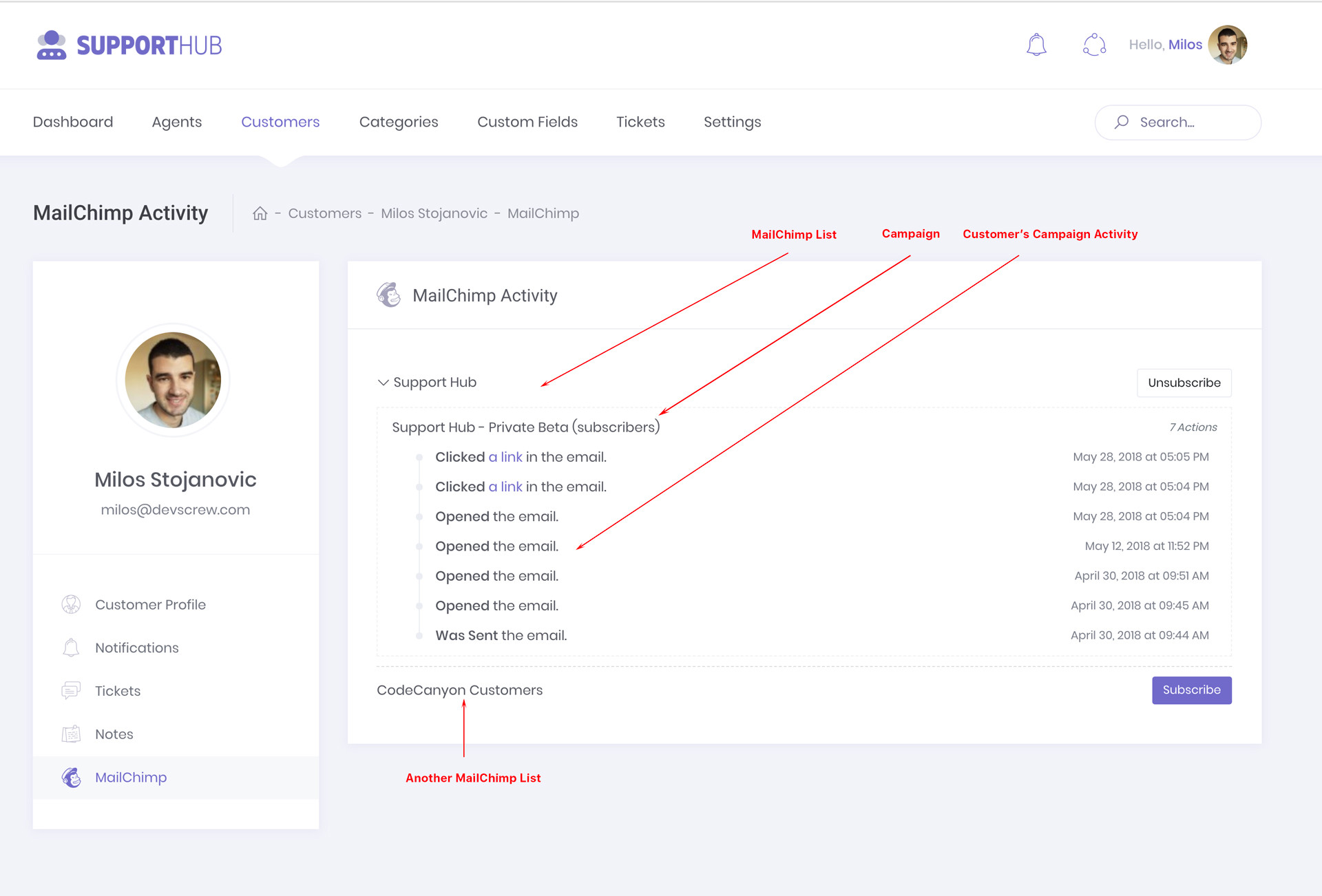
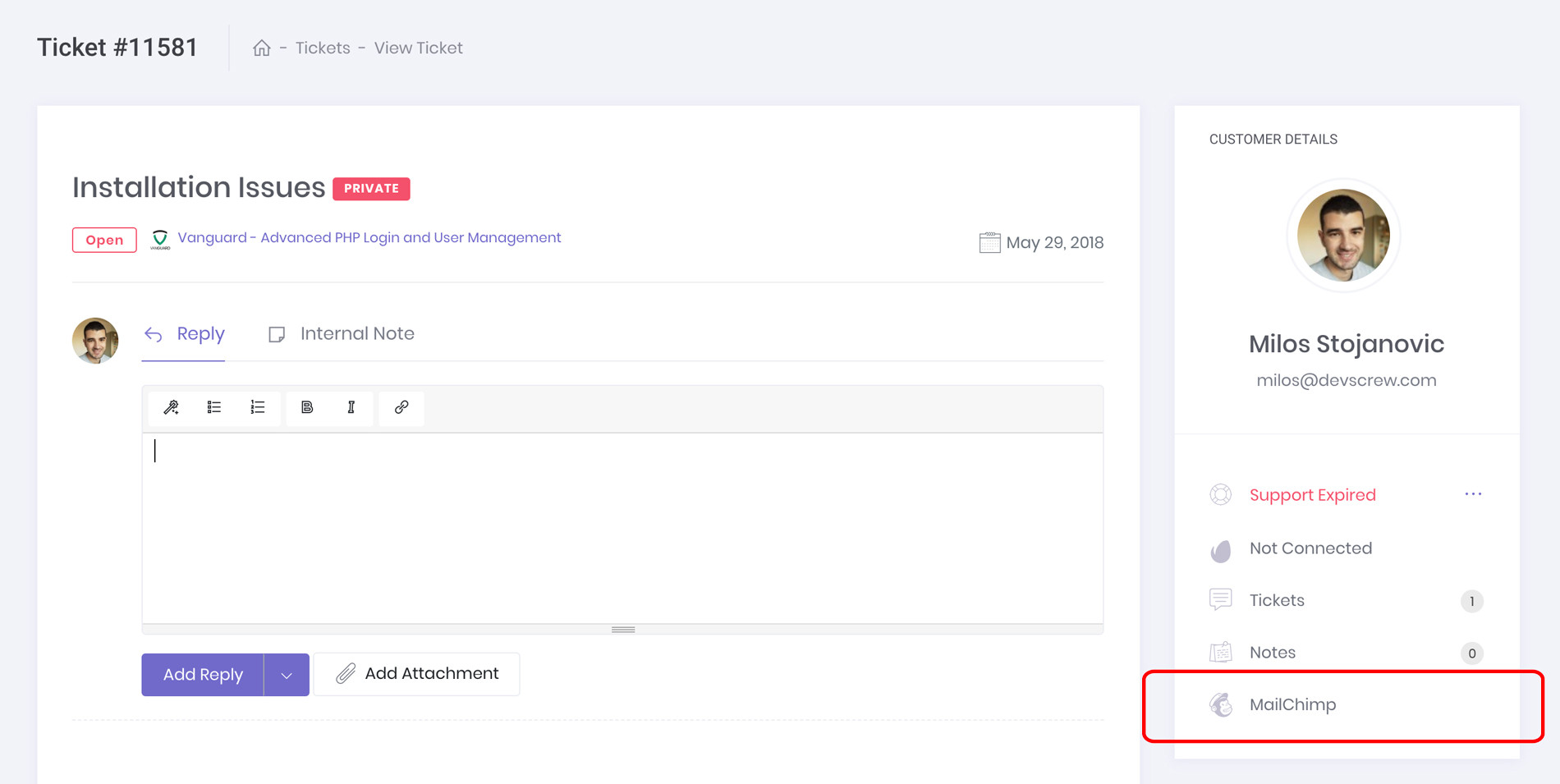
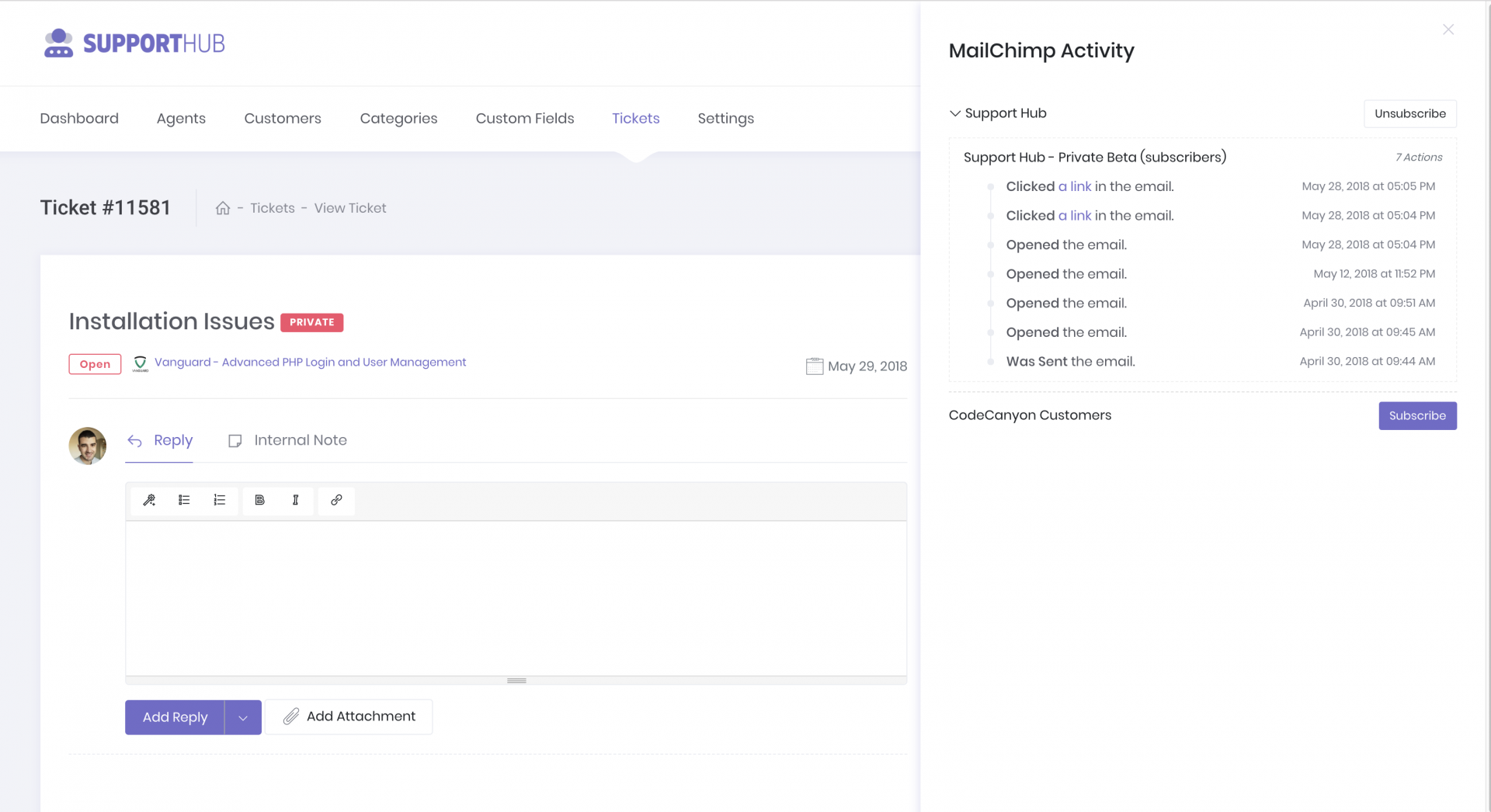
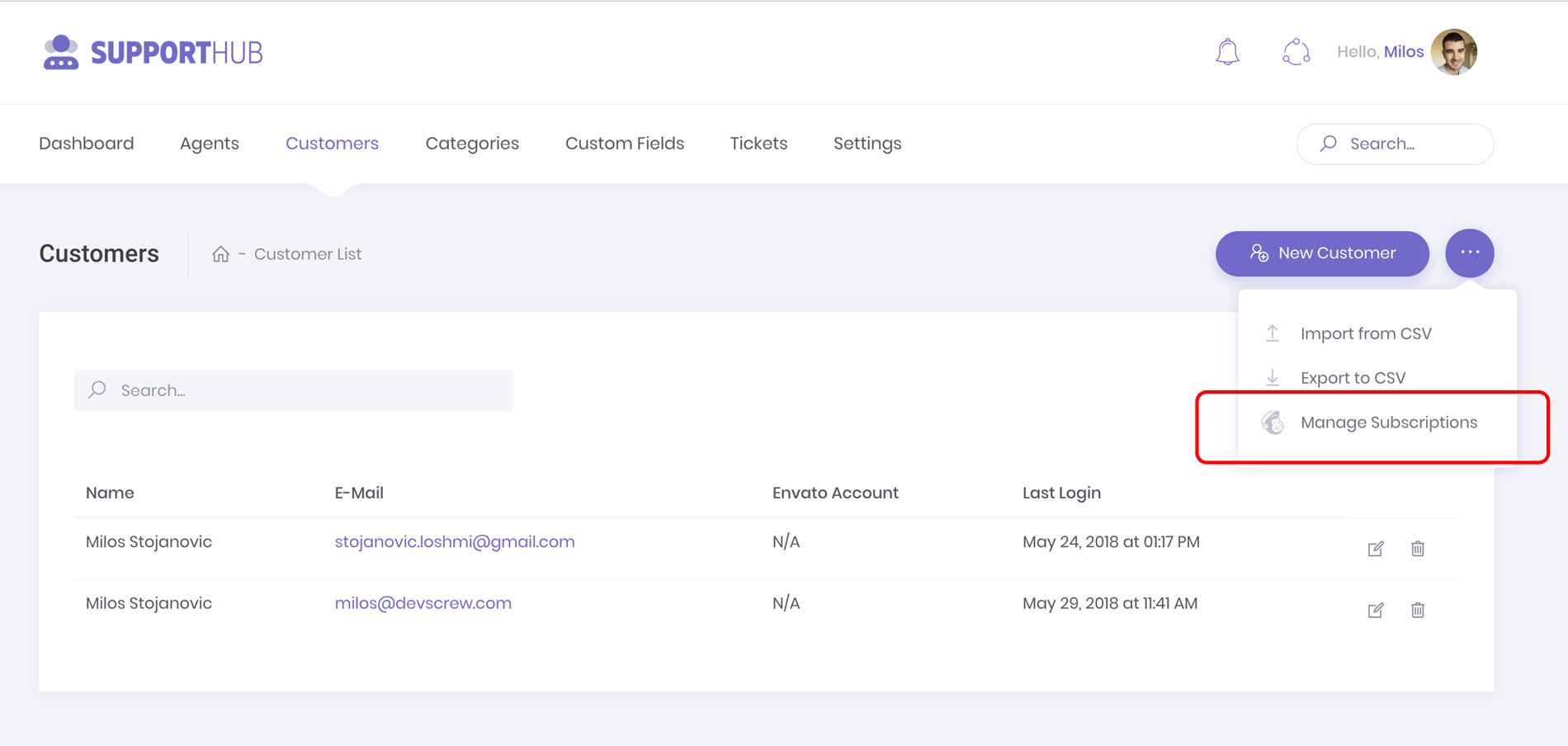
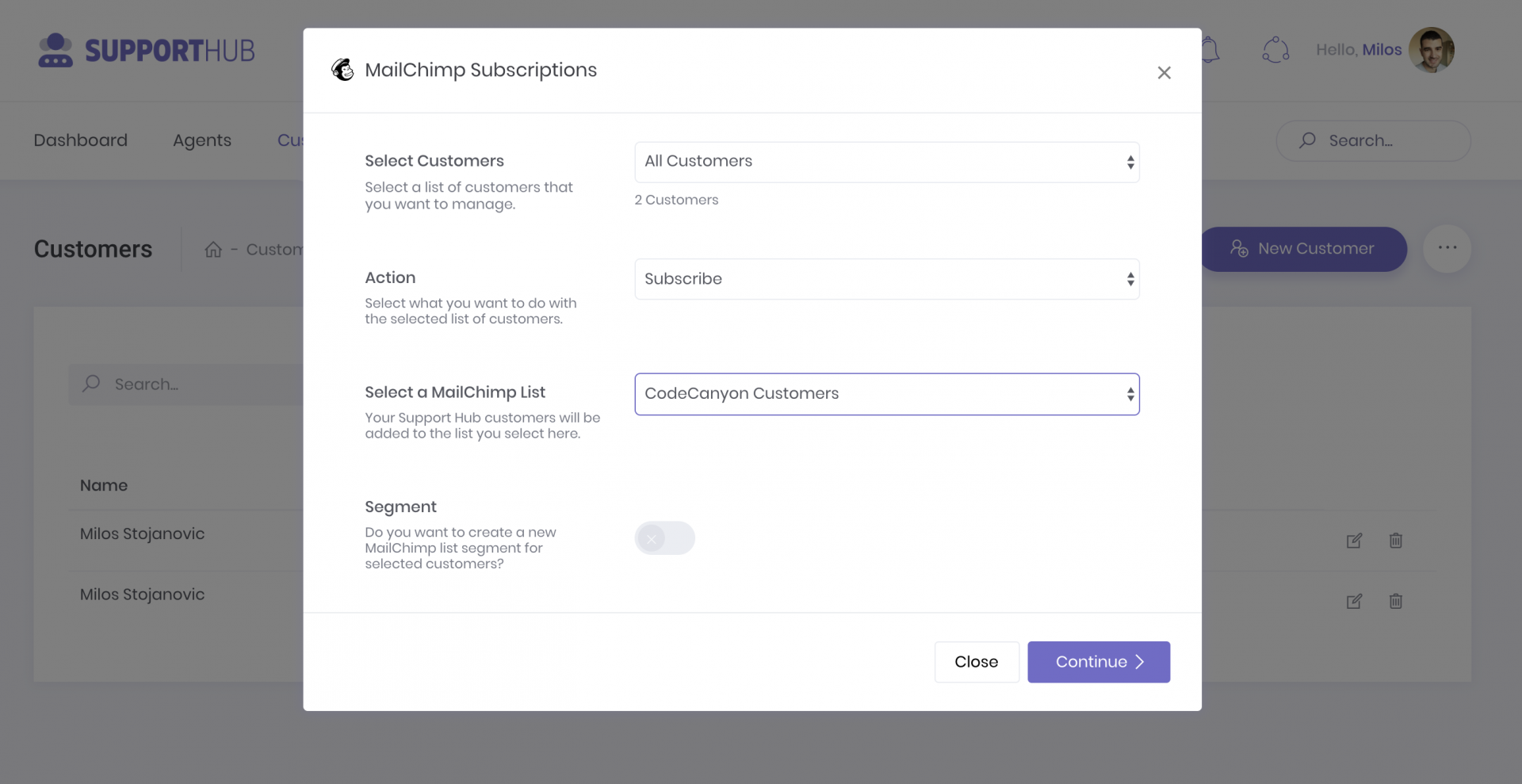
                <![CDATA[<p>Through the Support Hub integration with MailChimp, you are able to manage the subscription status for your customers directly from Support Hub. </p><p>Subscription status can be managed for each customer individually, as well as for a selected group of customers or all customers at the same time. </p><h4>Subscribing Individual Customer</h4><p>You can manage the subscription status for a specific customer from his profile section or from a ticket page of a ticket that he has created.</p><p>If you are on customer's profile page, you can access the MailChimp activity by clicking the MailChimp link inside the navigation section below the user's avatar.</p><p>The MailChimp activity page, as well as the sections that are available on that page, are explained in the screenshot below</p><p><img src="https://support-hub--assets.s3.eu-west-2.amazonaws.com/assets/3/images/O783ioxblWbx5kMLc8rNf5hOUVDA2bIqNwvfXLLX.jpeg" alt="O783ioxblWbx5kMLc8rNf5hOUVDA2bIqNwvfXLLX.jpeg" /></p><p>If you want to subscribe or unsubscribe the customer from a specific MailChimp list, just click on the <b>Subscribe</b> or <b>Unsubscribe</b> button to the right of the list's name.</p><p>MailChimp activity information can also be seen from a ticket page,  which allows you to easily check if you have sent any email campaigns to this specific customer in the past.</p><p><img src="https://support-hub--assets.s3.eu-west-2.amazonaws.com/assets/3/images/bLs2MjrJtcoFHWp4S4YGIdBnyknrIPa3TKdcvUbH.jpeg" alt="bLs2MjrJtcoFHWp4S4YGIdBnyknrIPa3TKdcvUbH.jpeg" /></p><h4><img src="https://support-hub--assets.s3.eu-west-2.amazonaws.com/assets/3/images/HKgoYUbPRh5OgVK8nvhIl0xFO6GIeT5aFI1bZz59.png" alt="HKgoYUbPRh5OgVK8nvhIl0xFO6GIeT5aFI1bZz59.png" /></h4><h4>Subscribing Multiple Customers</h4><p>You can also manage the subscription status for multiple customers at once directly from your Customers page.</p><p><img src="https://support-hub--assets.s3.eu-west-2.amazonaws.com/assets/3/images/G8lVpdS7AqoDP9VIiAl5npLI5fcT3YE2cH29gDx1.jpeg" alt="G8lVpdS7AqoDP9VIiAl5npLI5fcT3YE2cH29gDx1.jpeg" /></p><p>After clicking the <b>Manage Subscriptions</b> link, a modal popup will appear from which you can subscribe (or unsubscribe) a specific group of customers to (or from) the selected MailChimp list. </p><p><img src="https://support-hub--assets.s3.eu-west-2.amazonaws.com/assets/3/images/XLsz4WNO8HMohIRzYLuxSz4RO8aHX5oH2kRZK6eF.png" alt="XLsz4WNO8HMohIRzYLuxSz4RO8aHX5oH2kRZK6eF.png" /></p><p>If you want, you can also create a <a href="https://kb.mailchimp.com/lists/segments/save-and-manage-segments" target="_blank" rel="noreferrer noopener">MailChimp static segment</a> directly from this page, which will allow you to easily group only those customer that you have selected and subscribed in this batch. </p>]]>
            </summary>
                                    <updated>2019-01-17T10:16:20+00:00</updated>
        </entry>
            <entry>
            <title><![CDATA[Importing data from Ticksy]]></title>
            <link rel="alternate" href="https://help.support-hub.io/articles/importing-data-from-ticksy" />
            <id>https://help.support-hub.io/467</id>
            <author>
                <name><![CDATA[Milos Stojanovic]]></name>
            </author>
            <summary type="html">
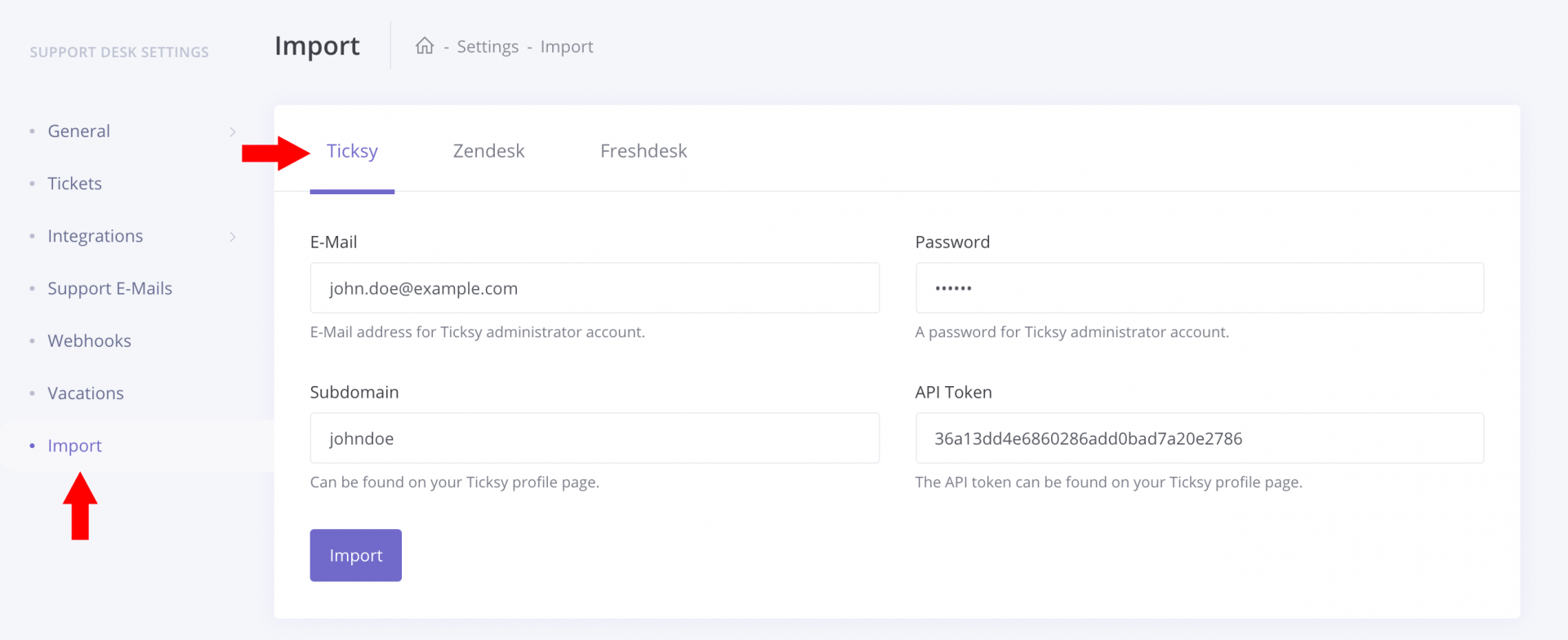
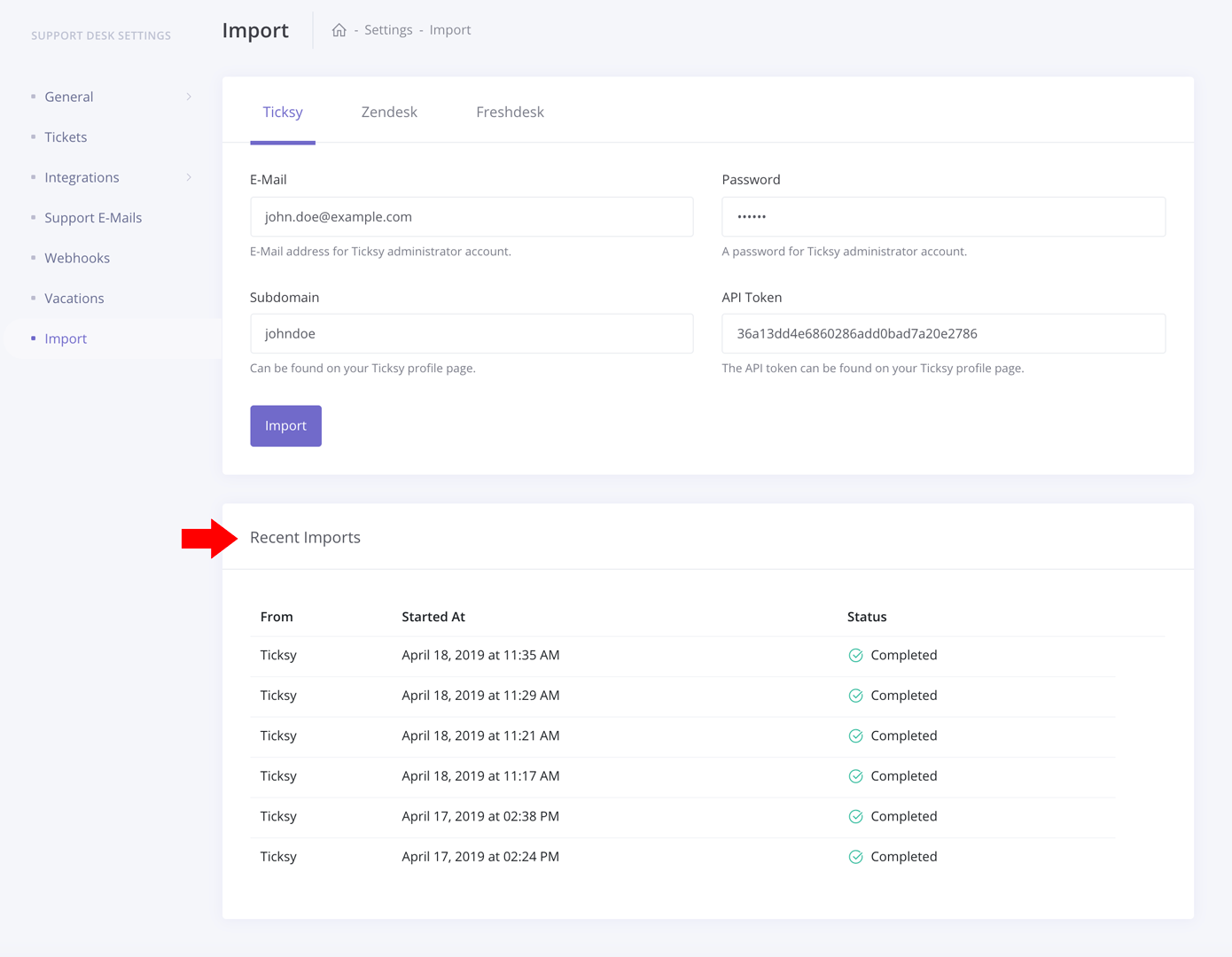
                <![CDATA[<p>If you already have a Ticksy account and you want to migrate to Support Hub, you can easily import all the data within a few clicks.</p><p>The following data can be imported automatically from your Ticksy account:</p><ul><li>Agents</li><li>Customers</li><li>Categories</li><li>Tickets</li><li>Articles</li></ul><p>To import your Ticksy data, go to your account settings page and select <b>Import</b><span> option from the sidebar menu.</span></p><p>Then, you'll need to select the <b>Ticksy</b> tab, provide the required credentials and click the <b>Import</b> button. We will then validate your credentials to make sure that we can access your Ticksy account and start the import if credentials are valid.</p><p><img src="https://support-hub--assets.s3.eu-west-2.amazonaws.com/assets/3/images/9TjxyY9qEvISDqurh8f1J200yx7uAuZbIU6wW5nl.png" style="width:100%;" alt="9TjxyY9qEvISDqurh8f1J200yx7uAuZbIU6wW5nl.png" /><br /></p><p>The importing of all the data can take a while and you can see the status of your import job in the <b>Recent Imports</b> table.</p><p><img src="https://support-hub--assets.s3.eu-west-2.amazonaws.com/assets/3/images/O6jrapHGzR9B5Ra5TAKG36L4xFXWIv8sirWFxftn.png" style="width:100%;" alt="O6jrapHGzR9B5Ra5TAKG36L4xFXWIv8sirWFxftn.png" /><br /></p><p>Note that you don't have to wait on this page for the import to complete. You can use the app as usual and navigate to any other page and, as soon as the import job is completed, you will receive the appropriate notification:</p><p><img src="https://support-hub--assets.s3.eu-west-2.amazonaws.com/assets/3/images/w8iUBQhUIV5FBeQsbUglTfkFAyWne6QKZjAEF8EQ.png" style="width:50%;" alt="w8iUBQhUIV5FBeQsbUglTfkFAyWne6QKZjAEF8EQ.png" /><br /></p><p><br /></p>]]>
            </summary>
                                    <updated>2019-04-25T12:57:32+00:00</updated>
        </entry>
            <entry>
            <title><![CDATA[Importing data from Zendesk]]></title>
            <link rel="alternate" href="https://help.support-hub.io/articles/importing-data-from-zendesk" />
            <id>https://help.support-hub.io/468</id>
            <author>
                <name><![CDATA[Milos Stojanovic]]></name>
            </author>
            <summary type="html">
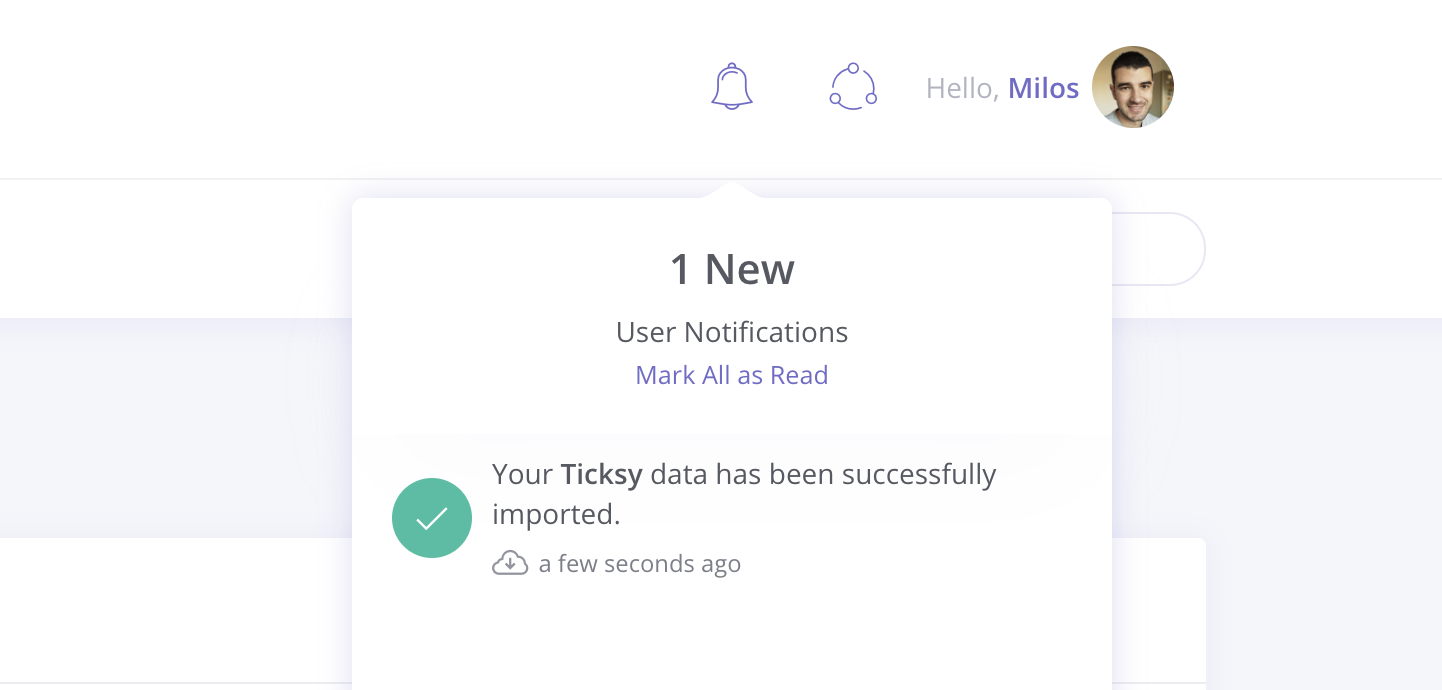
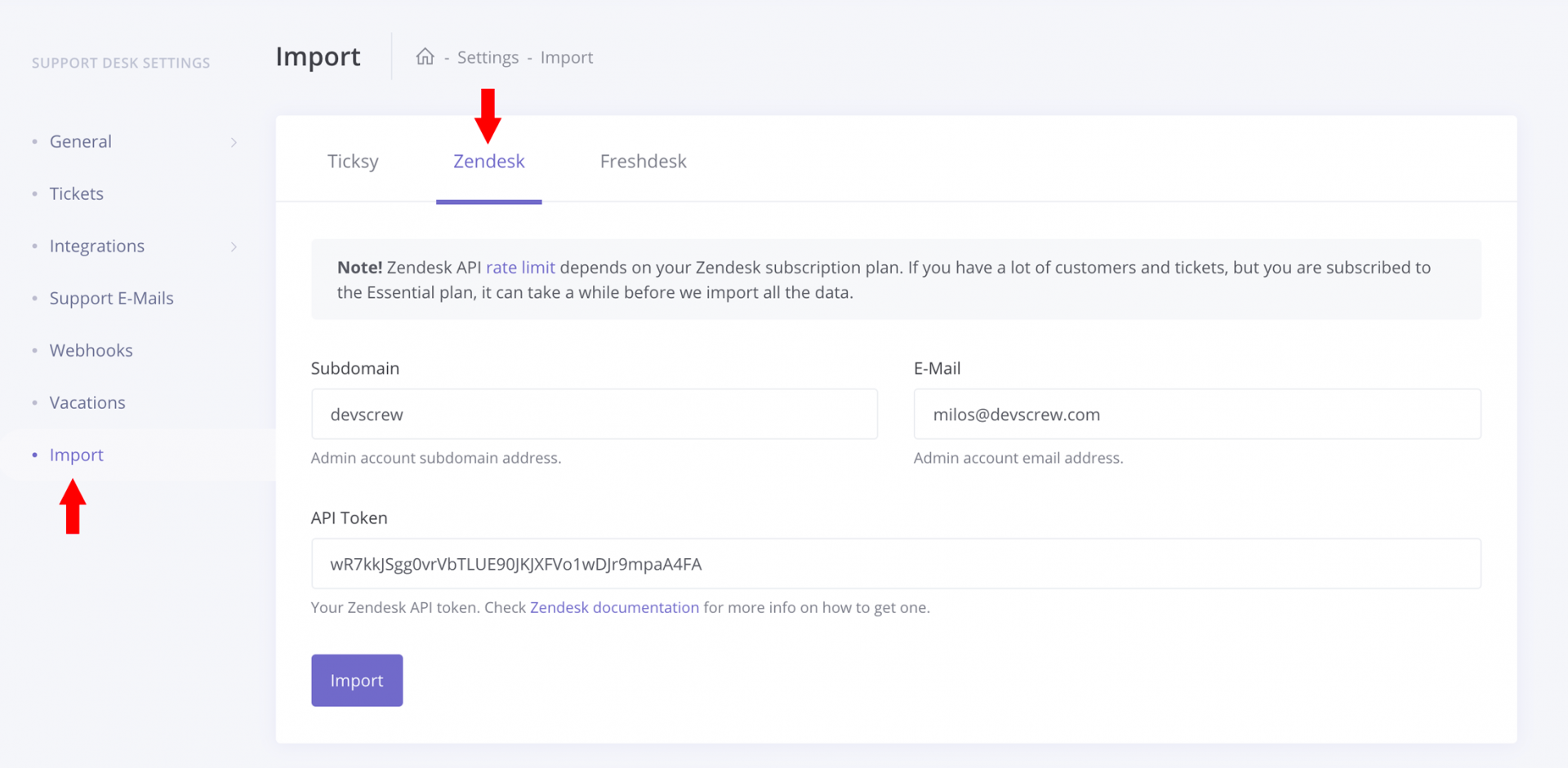
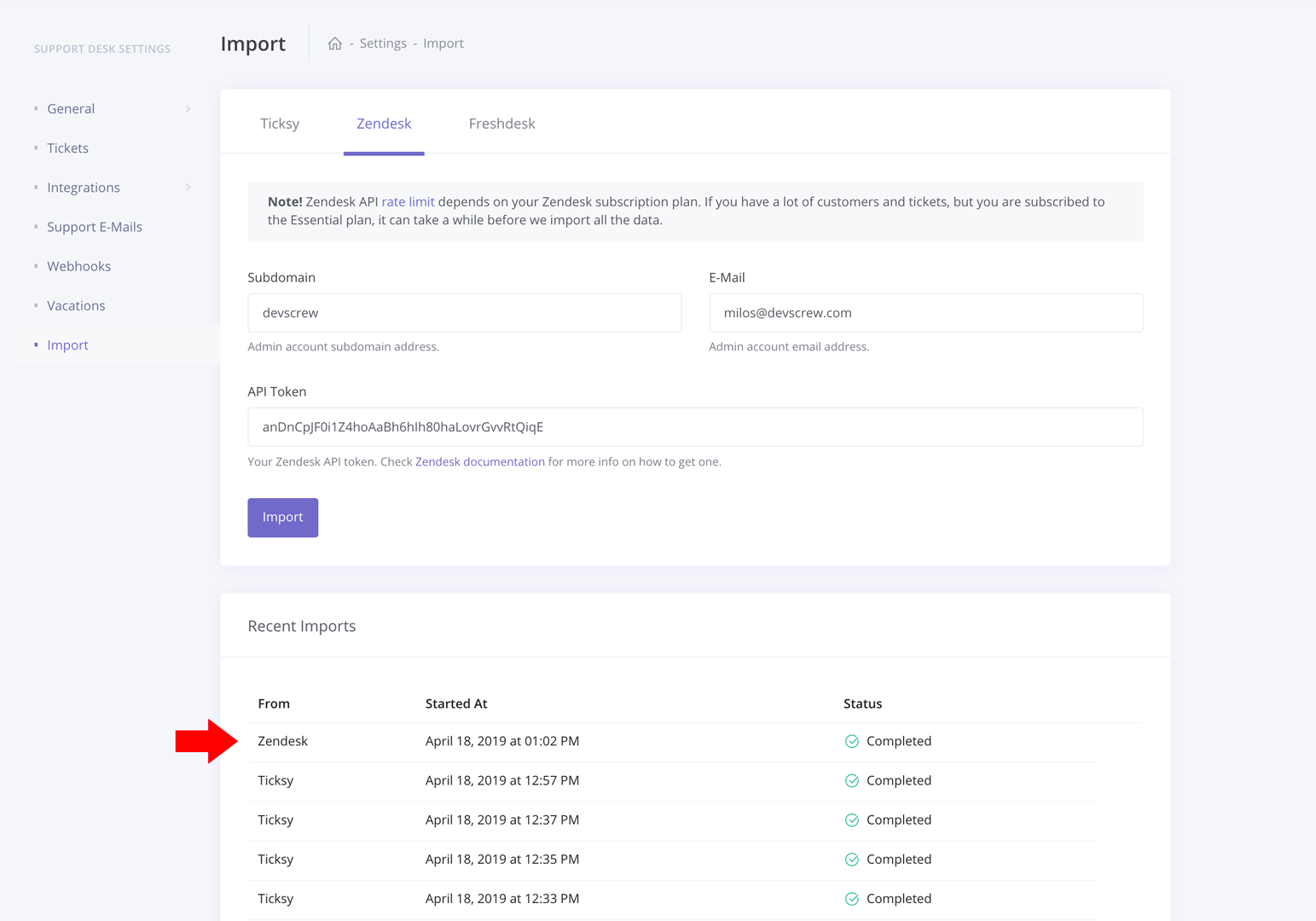
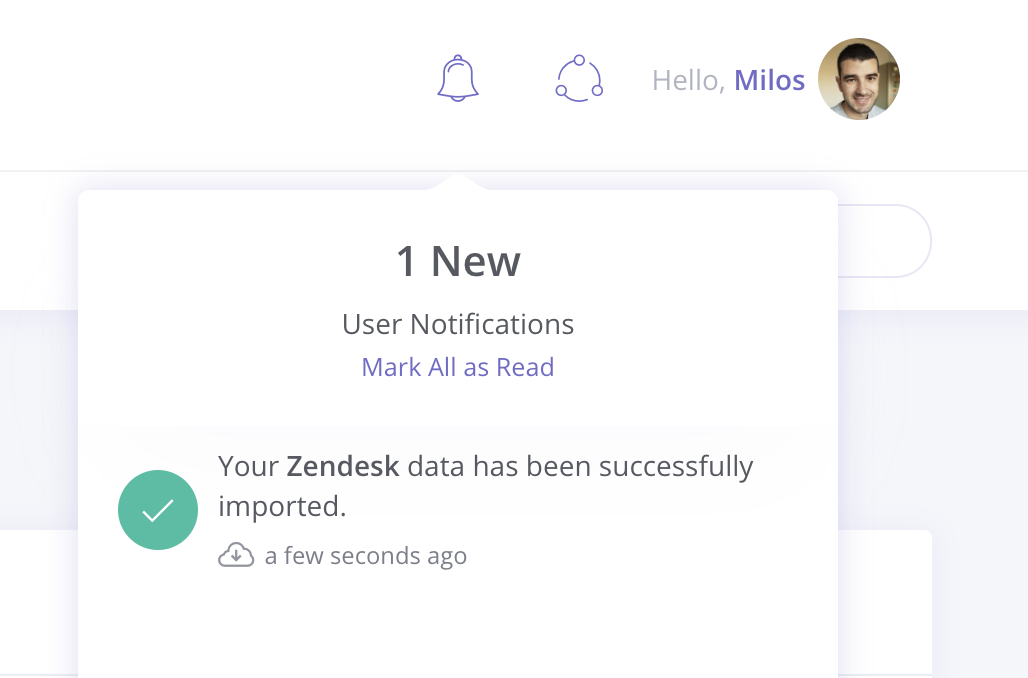
                <![CDATA[<p>If you already have a Zendesk account and you want to migrate to Support Hub, you can easily import all the data within a few clicks.</p><p>The following data can be imported automatically from your Ticksy account:</p><ul><li>Users (Agents and End-Users)</li><li>Groups</li><li>Tickets</li><li>Articles</li></ul><p><b>NOTE! </b>Since Zendesk does not have the same concept of "Categories" as Support Hub, all articles will be imported to a category named <b>General</b>. You can then easily move the newly created collections to any group you want.</p><h3>Data Import</h3><p>To import your Zendesk data, go to your account settings page and select <b>Import</b><span> option from the sidebar menu.</span></p><p>Then, you'll need to select the <b>Zendesk</b> tab, provide the required credentials and click the <b>Import</b> button. We will then validate your credentials to make sure that we can access your Zendesk account and start the import if credentials are valid.</p><p><img src="https://support-hub--assets.s3.eu-west-2.amazonaws.com/assets/3/images/DF9XzrOQ9G6U8PyBeu0xdgjvIaomLuLa7qZhNszT.png" style="width:100%;" alt="DF9XzrOQ9G6U8PyBeu0xdgjvIaomLuLa7qZhNszT.png" /><br /></p><p>The importing of all the data can take a while and you can see the status of your import job in the <b>Recent Imports</b> table.</p><img src="https://support-hub--assets.s3.eu-west-2.amazonaws.com/assets/3/images/0t7oKhdT5q3cDAQDqRcWkhv6Mx0eFON6fhutbB92.png" style="width:100%;" alt="0t7oKhdT5q3cDAQDqRcWkhv6Mx0eFON6fhutbB92.png" /><p><br /></p><p>Note that you don't have to wait on this page for the import to complete. You can use the app as usual and navigate to any other page and, as soon as the import job is completed, you will receive the appropriate notification:</p><p><img src="https://support-hub--assets.s3.eu-west-2.amazonaws.com/assets/3/images/ox9fIQLohwFCdfhlZR1WdytrAtE1eBsvWUh4DNFZ.png" style="width:50%;" alt="ox9fIQLohwFCdfhlZR1WdytrAtE1eBsvWUh4DNFZ.png" /><br /></p><h3>API Rate Limits</h3><p>Zendesk <a href="https://developers.freshdesk.com/api/#ratelimit" target="_blank" rel="noreferrer noopener">API rate limit</a> depends on your Zendesk subscription plan. If you have a lot of customers and tickets, but you are subscribed to the Essential plan, it can take a while before we import all the data.</p><p><br /></p>]]>
            </summary>
                                    <updated>2019-04-25T12:57:32+00:00</updated>
        </entry>
            <entry>
            <title><![CDATA[Importing data from Freshdesk]]></title>
            <link rel="alternate" href="https://help.support-hub.io/articles/importing-data-from-freshdesk" />
            <id>https://help.support-hub.io/469</id>
            <author>
                <name><![CDATA[Milos Stojanovic]]></name>
            </author>
            <summary type="html">
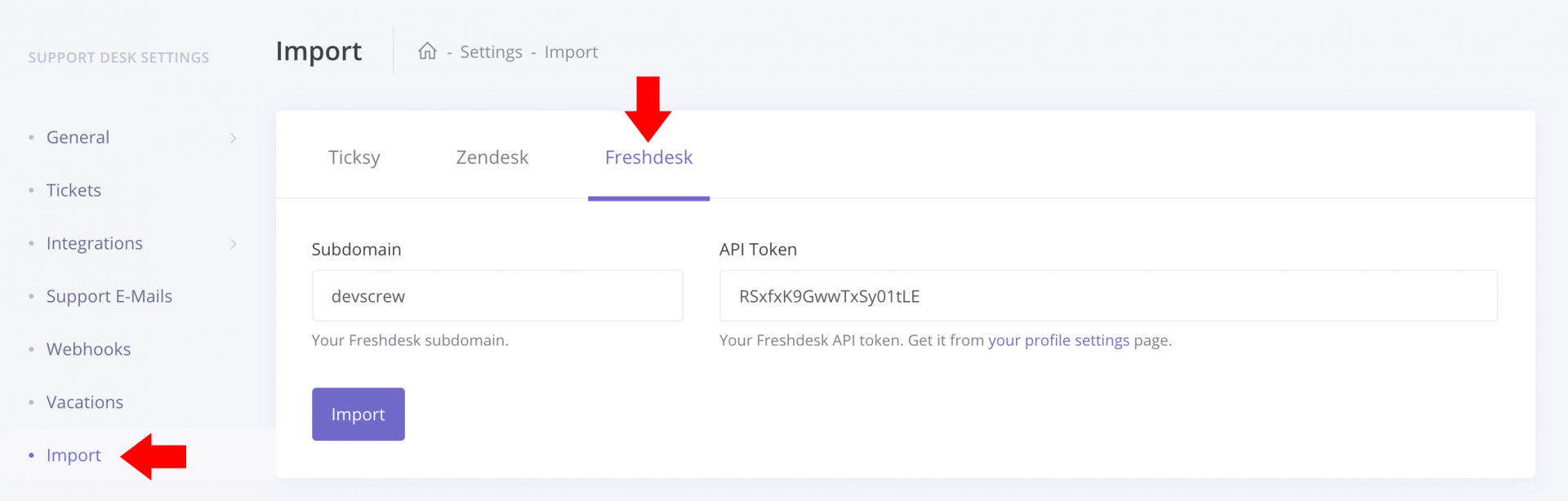
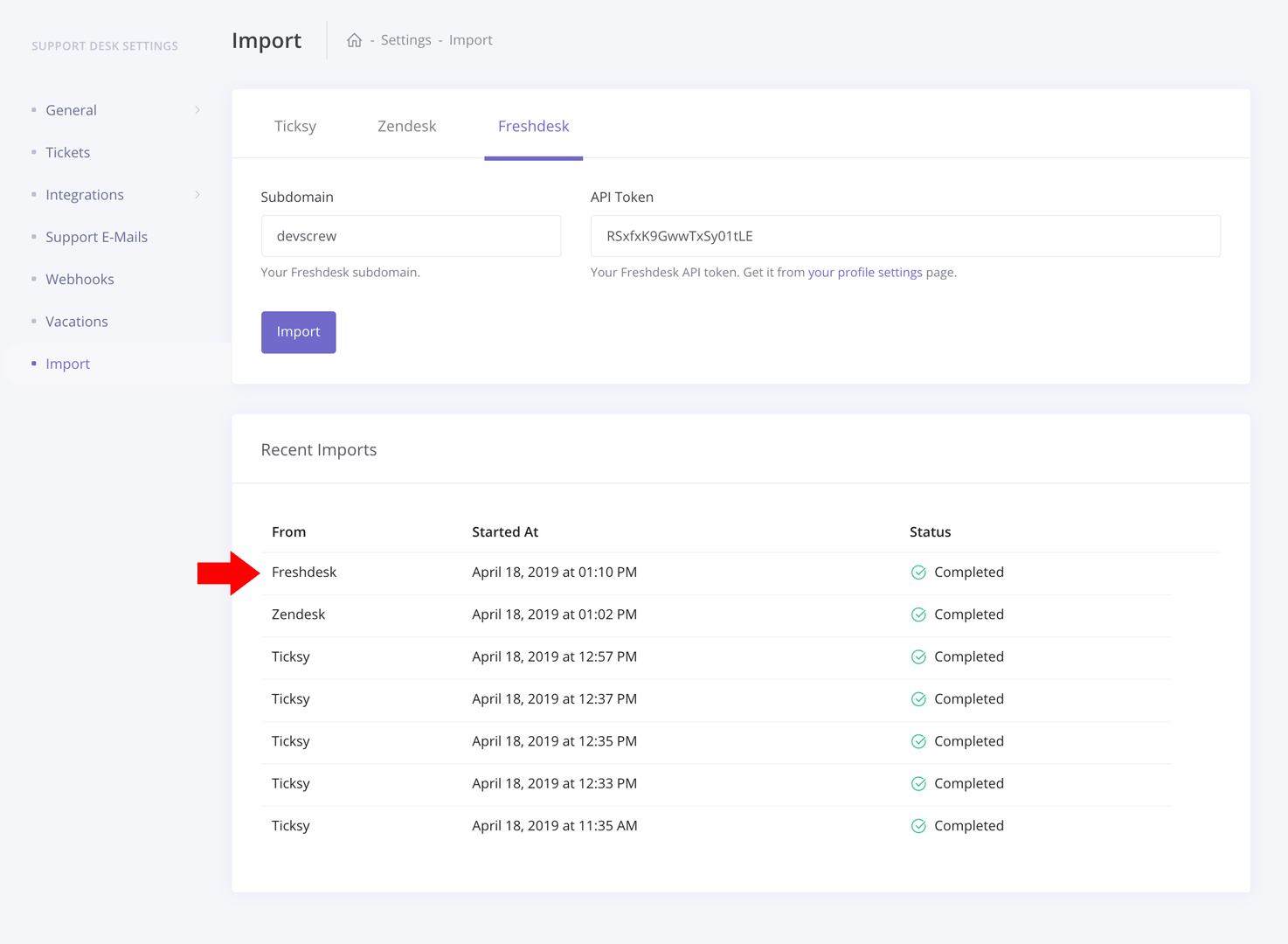
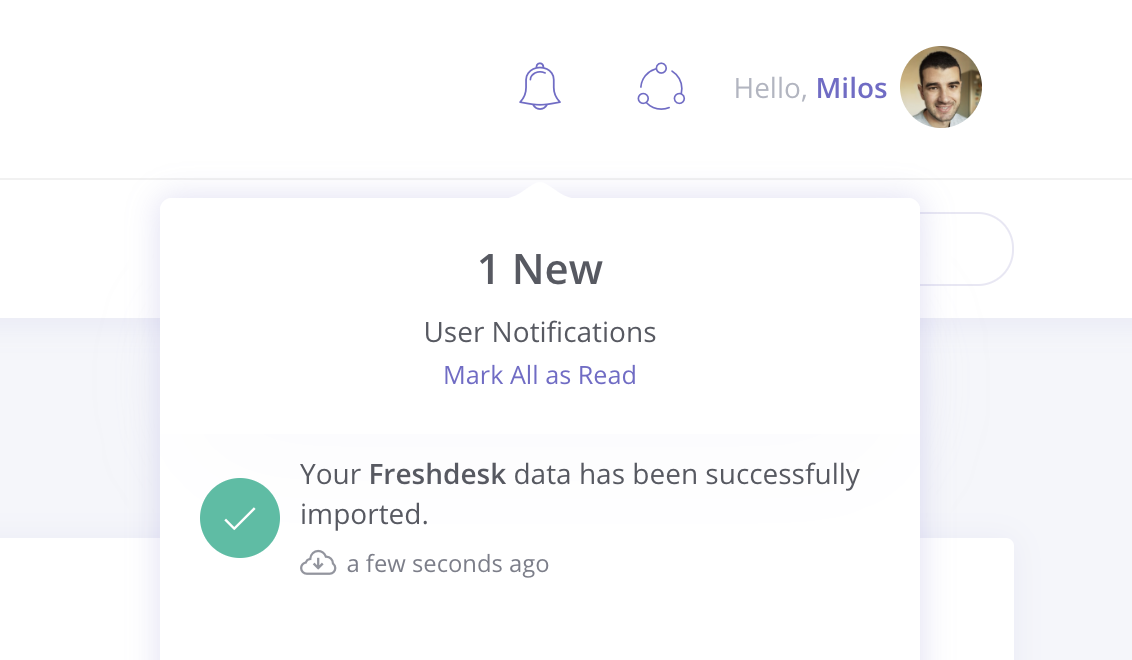
                <![CDATA[<p>If you already have a Freshdesk account and you want to migrate to Support Hub, you can easily import all the data within a few clicks.</p><p>The following data can be imported automatically from your account:</p><ul><li>Agents</li><li>Customers</li><li>Tickets</li><li>Knowledgebase Solutions</li></ul><h3>Data Import</h3><p>To import your Freshdesk data, go to your account settings page and select <b>Import</b><span> option from the sidebar menu.</span></p><p>Then, you'll need to select the <b>Freshdesk</b> tab, provide the required credentials and click the <b>Import</b> button. We will then validate your credentials to make sure that we can access your Freshdesk account and start the import if credentials are valid.</p><p><img src="https://support-hub--assets.s3.eu-west-2.amazonaws.com/assets/3/images/vb2ApBEaU5W7mv3w0TqVj5TthKy2J27MMRksB9RA.png" style="width:100%;" alt="vb2ApBEaU5W7mv3w0TqVj5TthKy2J27MMRksB9RA.png" /><br /></p><p>The importing of all the data can take a while and you can see the status of your import job in the <b>Recent Imports</b> table.<br /></p><p><img src="https://support-hub--assets.s3.eu-west-2.amazonaws.com/assets/3/images/jp3LglVPECZjg1MqhUrOHFjAQtHmnQAuvlRqoob6.png" style="width:100%;" alt="jp3LglVPECZjg1MqhUrOHFjAQtHmnQAuvlRqoob6.png" /><br /></p><p>Note that you don't have to wait on this page for the import to complete. You can use the app as usual and navigate to any other page and, as soon as the import job is completed, you will receive the appropriate notification:</p><p><img src="https://support-hub--assets.s3.eu-west-2.amazonaws.com/assets/3/images/BrSnHNjQAnuqXvh40nEvGgojhzylA92dgYpwK90w.png" style="width:50%;" alt="BrSnHNjQAnuqXvh40nEvGgojhzylA92dgYpwK90w.png" /><br /></p><h3>API Rate Limits</h3><p>Freshdesk <a href="https://developers.freshdesk.com/api/#ratelimit" target="_blank" rel="noreferrer noopener">API rate limit</a> depends on your Freshdesk subscription plan. If you have a lot of customers and tickets, it can take a while before we import all the data.</p><p><br /></p>]]>
            </summary>
                                    <updated>2019-04-25T12:57:32+00:00</updated>
        </entry>
            <entry>
            <title><![CDATA[Category Thumbnail Customization]]></title>
            <link rel="alternate" href="https://help.support-hub.io/articles/category-thumbnail-customization" />
            <id>https://help.support-hub.io/921</id>
            <author>
                <name><![CDATA[Milos Stojanovic]]></name>
            </author>
            <summary type="html">
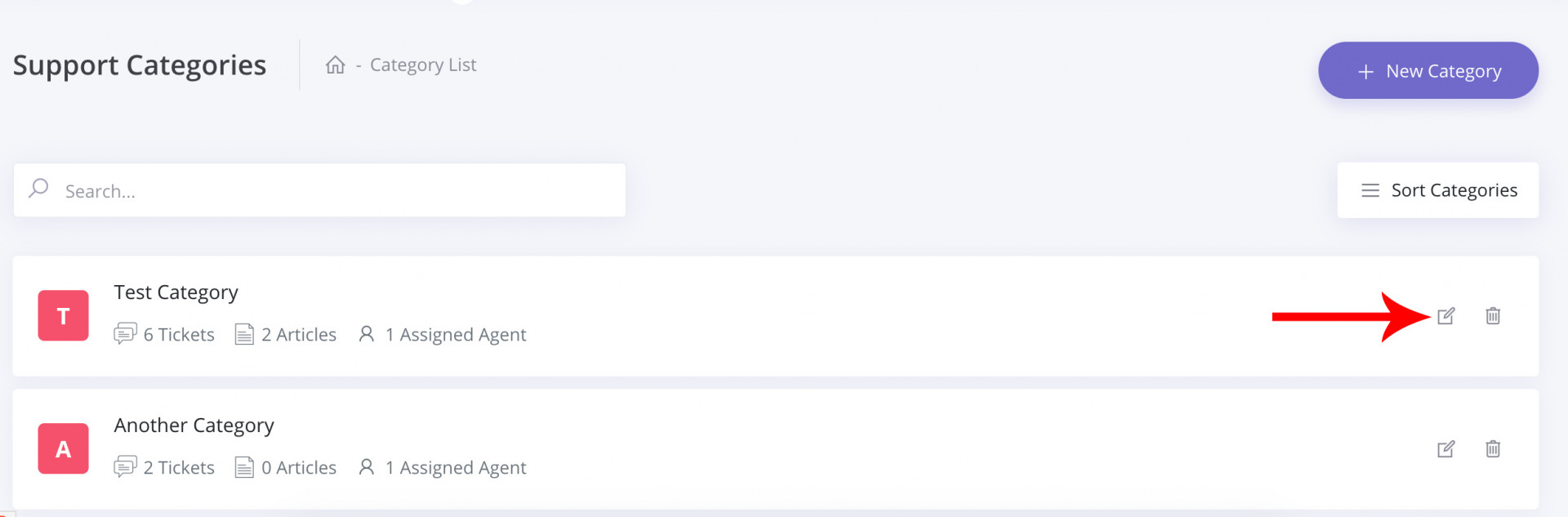
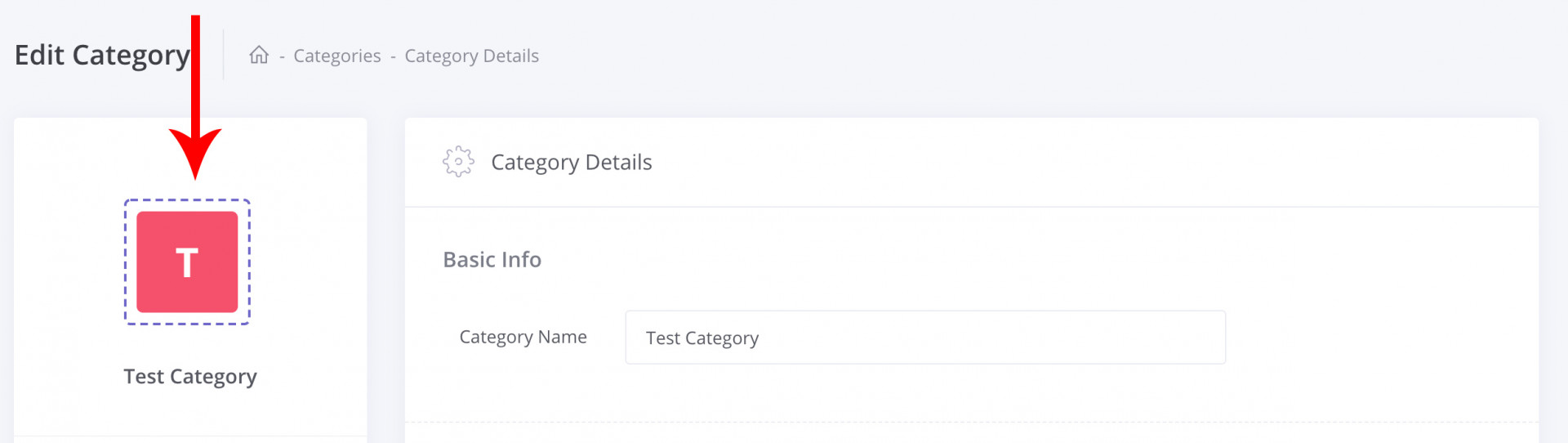
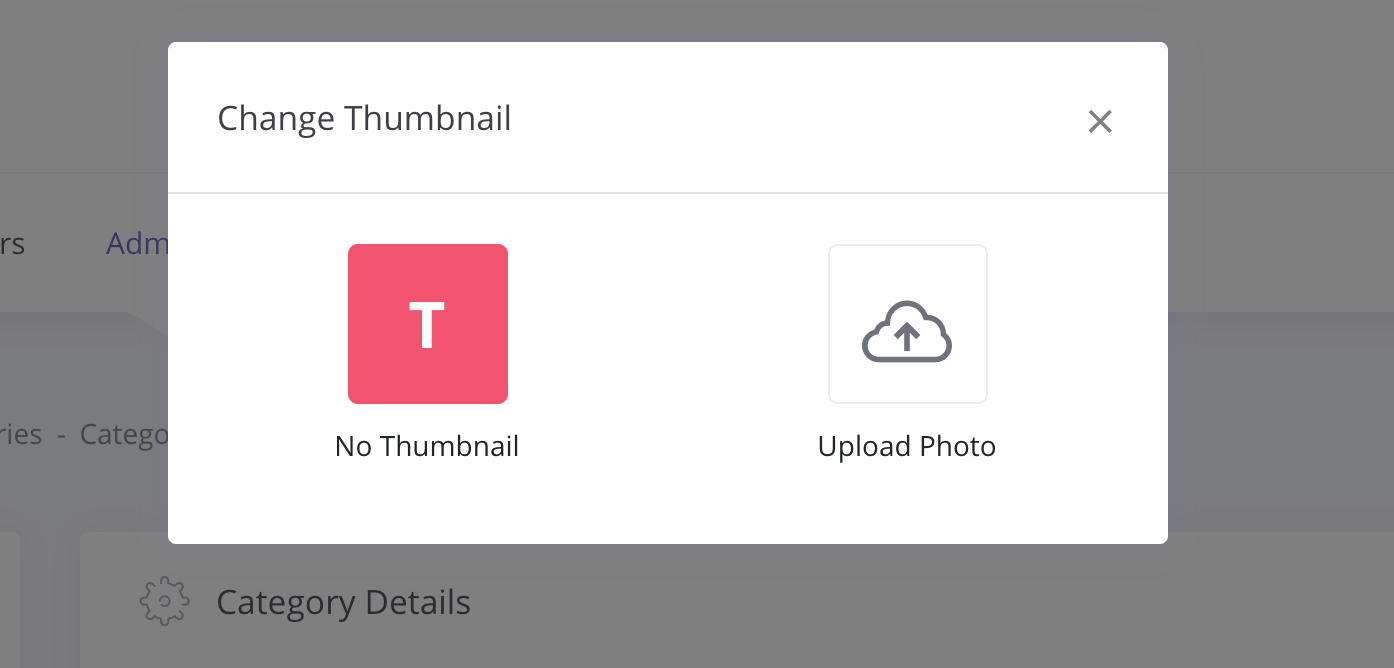
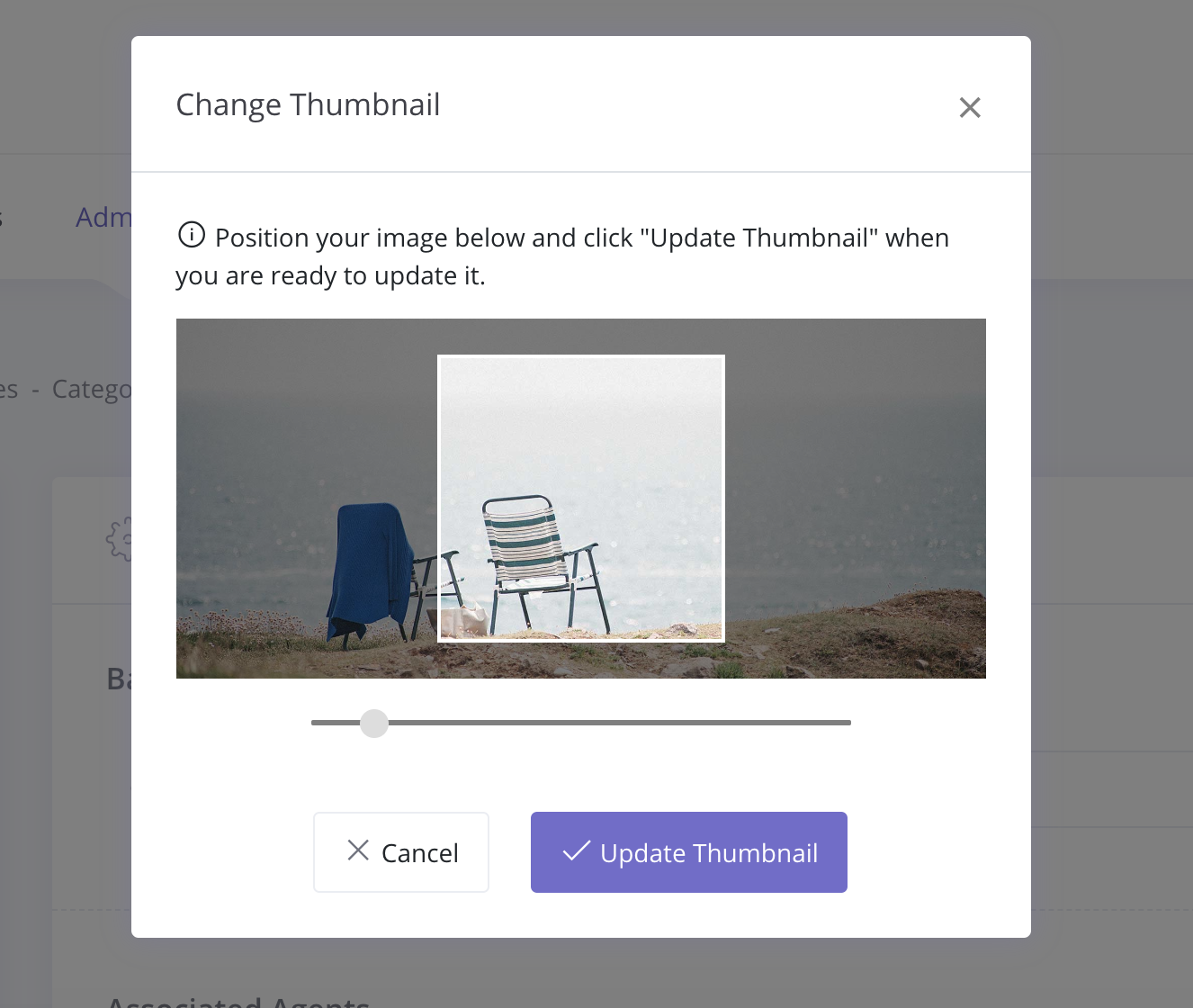
                <![CDATA[<p>To customize the category thumbnail you'll need to edit a specific category first. You can do that from the Categories page by clicking on the <b>edit</b> icon like it is displayed on the image below.</p><p><img src="https://support-hub--assets.s3.eu-west-2.amazonaws.com/assets/3/images/k4QQIEzc9HJPY5hv3keXWKKIyj6EImt4AeExk1Vb.jpeg" alt="k4QQIEzc9HJPY5hv3keXWKKIyj6EImt4AeExk1Vb.jpeg" /><br /></p><p>When you are on the Edit Category page, click on the category thumbnail to open the modal pop-up for further thumbnail customization.</p><p><img src="https://support-hub--assets.s3.eu-west-2.amazonaws.com/assets/3/images/Cpzs8iY36IsojKyp73qBkHkyPYNuOUSveuXzSqLk.jpeg" alt="Cpzs8iY36IsojKyp73qBkHkyPYNuOUSveuXzSqLk.jpeg" /><br /></p><p>Inside the pop-up modal, you are able to either upload a custom thumbnail or completely remove the custom image and use a letter instead, which is the default for each category.</p><p> </p><p><img src="https://support-hub--assets.s3.eu-west-2.amazonaws.com/assets/3/images/Kqoo0Tl1blH2LacPSOp2U2uTOcR7yXjErqW34k95.png" alt="Kqoo0Tl1blH2LacPSOp2U2uTOcR7yXjErqW34k95.png" /><br /></p><p>Once you select the image to upload you will be able to crop the image directly from the application interface so you don't have to worry about the image size and dimensions.</p><p><img src="https://support-hub--assets.s3.eu-west-2.amazonaws.com/assets/3/images/salNf7g2sYq7y8WQYuG4L2YaBX24x68rxUqmSHCh.png" alt="salNf7g2sYq7y8WQYuG4L2YaBX24x68rxUqmSHCh.png" /><br /></p>]]>
            </summary>
                                    <updated>2019-07-09T21:12:47+00:00</updated>
        </entry>
            <entry>
            <title><![CDATA[Articles RSS Feed]]></title>
            <link rel="alternate" href="https://help.support-hub.io/articles/articles-rss-feed-1092" />
            <id>https://help.support-hub.io/1092</id>
            <author>
                <name><![CDATA[Milos Stojanovic]]></name>
            </author>
            <summary type="html">
                <![CDATA[<p>Support Hub provides the article RSS feed for each account. </p><p>The feed with all published articles that can be publically visible is available on <b>https://yoursubdomain.support-hub.io/feed</b> </p><p>If you want, there is a feed available for each category separately, and you can get the URL to the feed at the bottom of the category collections page like it is displayed on the screenshot below:</p><p><img src="https://support-hub--assets.s3.eu-west-2.amazonaws.com/assets/3/images/ncV8wXD57s5YJheqsHmZKsMv4IRVldfTscs5JyeW.jpeg" alt="ncV8wXD57s5YJheqsHmZKsMv4IRVldfTscs5JyeW.jpeg" /><br /></p><p>For example, here is the URL to the General category here on the official Support Hub help desk: <a href="https://help.support-hub.io/feed/3">https://help.support-hub.io/feed/3</a></p><p><br /></p><p><br /></p>]]>
            </summary>
                                    <updated>2019-08-12T13:34:21+00:00</updated>
        </entry>
    </feed>